
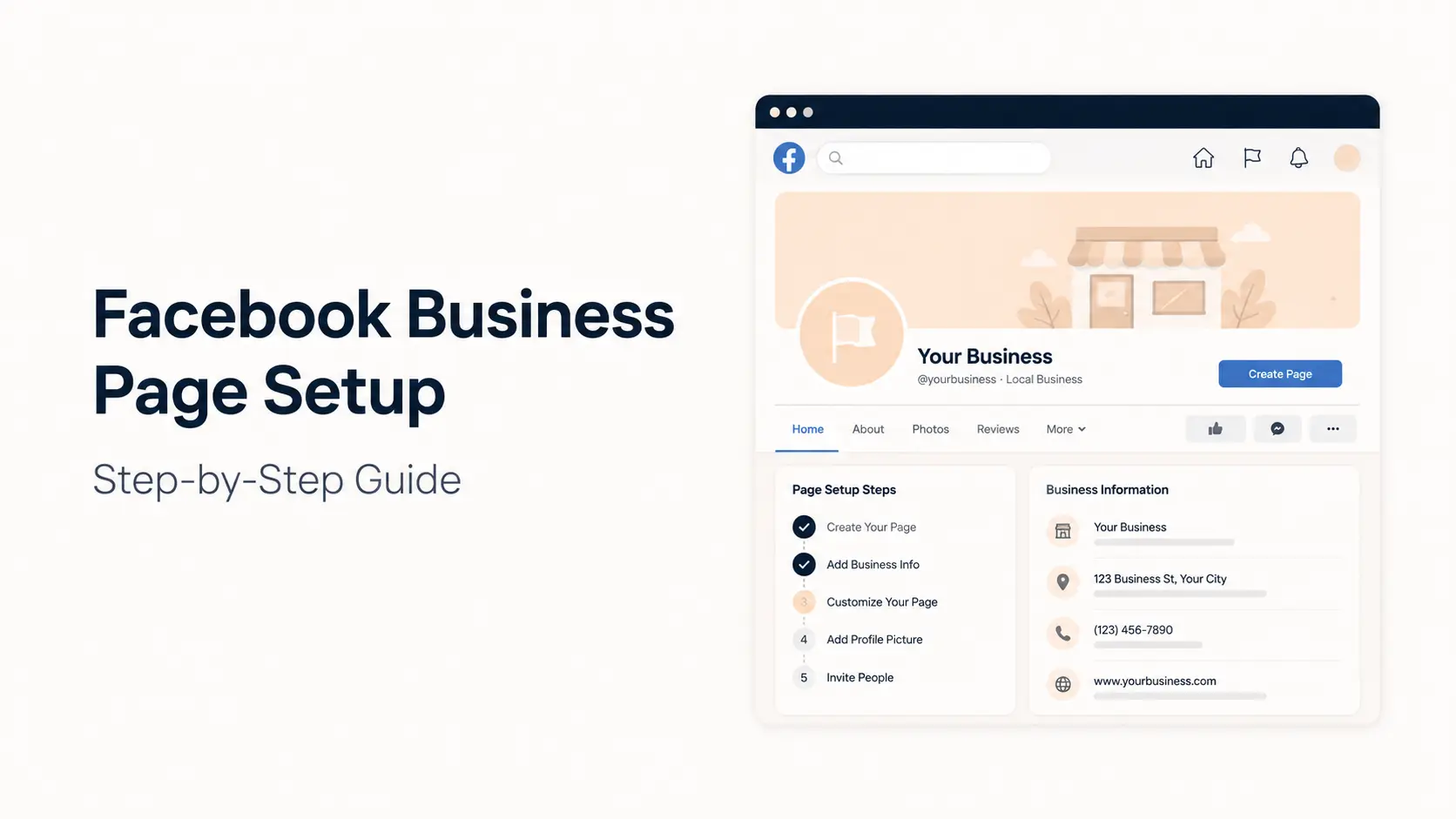


Creating a Facebook Business Page is free, but a useful business Page needs more than a name and logo. The setup should make it easy for people to understand what you offer, contact you, trust the Page, and take the next step.
Meta currently positions Facebook Pages for businesses, brands, organizations, and public figures. On desktop, the basic creation flow is still simple: open the Page creation screen, enter a Page name and category, optionally add a bio, and create the Page. The work that follows is what turns that blank Page into a usable business asset.
This guide walks through the complete 2026 setup from creation to launch, including username, images, business details, action buttons, Instagram and WhatsApp connections, Page access, Meta Business Suite, content, and promotion.
TL;DR
- Create the Page from Facebook Pages and choose a clear business name and relevant category.
- Complete the username, bio, contact details, profile image, cover image, business hours, and action button before promoting the Page.
- Connect Instagram and WhatsApp when they are part of your customer journey.
- Use Facebook access carefully. Give full control only to people who should be able to change settings, access, or delete the Page.
- Use Meta Business Suite for scheduling, messages, content management, and team workflows.
- Publish several useful posts before inviting people so the Page does not look empty.
What is a Facebook Business Page?
A Facebook Business Page is a public Facebook presence created for a company, brand, local business, organization, creator brand, or public figure. It can publish posts, Reels, Stories, events, and offers; receive messages and comments; run ads; show business information; and provide access to insights and Meta business tools.
A Page is different from a personal Facebook profile. A personal profile represents an individual. A Page represents a business or public-facing entity and can be managed by multiple people with different access levels. Facebook also offers professional mode for profiles, but a Page remains the cleaner choice when you need a business identity, team access, linked accounts, ads, business information, and a separate brand presence.
What you need before creating the Page
You can technically create the Page first and fill everything in later, but preparing a few assets makes the setup much faster and more consistent.
- Your final business or brand name and the spelling you use on your website and other social profiles.
- One or two relevant Page categories that accurately describe the business.
- A short bio that explains what you offer and who you help.
- A square logo or brand image for the profile photo and a landscape cover image.
- Website URL, business email, phone number, address, and opening hours where applicable.
- A preferred Facebook username such as @YourBrand.
- Your preferred call to action, such as visiting the website, calling, messaging, booking, or contacting the business.
- The Instagram and WhatsApp accounts you plan to connect.
- A list of team members or agency partners who need access.
If you are still planning your broader social presence, Tenfic’s social media growth strategy guide can help you decide how Facebook should fit into the rest of your channels.
How to create a Facebook Business Page on desktop
Step 1: Open the Facebook Page creation screen
Log in to the Facebook account you use to manage business assets, then go to facebook.com/pages/create. Meta’s current desktop instructions start from this Page creation screen. You do not need to create a separate personal account for the business.
Step 2: Enter the Page name
Use the business name people already know. For most businesses, the best Page name is the same name used on the website, storefront, invoices, Google Business Profile, and other social networks. Consistency reduces confusion and makes branded searches easier.
Avoid stuffing the Page name with slogans, locations, services, punctuation, or keywords unless they are genuinely part of the brand name. A clean name is easier to recognize and less likely to conflict with Facebook’s Page naming rules.
Step 3: Choose the most accurate category
Choose a category that closely matches what the business does. Categories can influence which Page fields and business features are available. A restaurant, local service provider, ecommerce brand, consultant, software company, nonprofit, and public figure may see different information fields or features.
On the Facebook app, Meta currently allows you to select up to three Page categories during creation. On desktop, the interface may suggest categories as you type. Choose for accuracy rather than keyword volume.
Step 4: Add a short bio
The bio should answer two questions quickly: what does the business do, and why should the visitor care? Keep it specific. “Web development, SEO, content, and automation for growing businesses” tells a visitor more than “We help businesses succeed online.”
You can refine the About section after creation, so do not turn the initial bio into a long company description.
Step 5: Click Create Page
Review the name, category, and bio, then click Create Page. Facebook will create the public Page and let you continue with customization. At this stage, treat the Page as unfinished. Complete the following steps before sending customers to it.
Step 6: Create a memorable Facebook username
Your username becomes the @handle shown under the Page name and forms part of the Page URL. A short username such as @YourBrand is easier to share than a long default URL.
To edit it, switch into the Page, open Settings & privacy → Settings → Page setup, then edit the username. Meta notes that newly created Pages may not always be able to claim a username immediately. If the option is unavailable, complete the Page and try again later.
- Use the same handle you use on Instagram, YouTube, TikTok, LinkedIn, or X when possible.
- Prefer the brand name without unnecessary numbers or punctuation.
- If the exact brand name is unavailable, add a clear qualifier such as the industry or location rather than random characters.
- Avoid changing the username repeatedly after people start sharing the Page URL.
Step 7: Add the profile picture and cover image
For a business, the profile picture is usually the logo or a highly recognizable brand mark. It appears at a small size next to posts, comments, ads, and messages, so fine text or complicated artwork often becomes unreadable.
Use the cover image to communicate context the logo cannot. A service business can show its main offer, an ecommerce brand can feature products or a campaign, and a local business can show its location or customer experience. Keep important text and visual elements away from extreme edges because Facebook can crop covers differently across screens.
Step 8: Complete the About and contact information
Switch into the Page and open About, then edit the relevant sections such as Contact and Basic Info. Depending on the Page category, Facebook may let you add a website, phone number, email, address, service information, and other business details.
Local businesses should check the address and map pin carefully. Meta uses the location to determine the Page’s time zone for business hours, so an incorrect location can also produce confusing opening-hour information.
| Field | What to add | Why it matters |
|---|---|---|
| Website | Your canonical business or landing-page URL | Moves interested visitors into a channel you control |
| A monitored business email | Provides a clear contact route | |
| Phone | Business or support number where relevant | Useful for local and service businesses |
| Address | Accurate physical location and map pin | Important for stores, offices, clinics, restaurants, and local services |
| Hours | Current opening or service hours | Prevents customers contacting or visiting at the wrong time |
| About | Clear description of products, services, audience, and positioning | Helps visitors understand the business quickly |
Step 9: Add an action button
The action button turns Page visits into a next step. Facebook currently lets people with Facebook access add or edit the Page action button. Available choices can vary by Page and category, so choose the option closest to the action you want visitors to take.
Match the button to the business model. A local service may prioritize calls or messages. A consultant may send people to a booking or project page. An ecommerce brand may send visitors to the store. The button should point to a working destination and match the promise in the Page bio and cover image.
Step 10: Connect Instagram and WhatsApp when relevant
Connecting Instagram can simplify cross-platform management. Meta currently allows a Page and Instagram account to be linked from Settings → Permissions → Linked accounts. When connected, authorized people can use shared tools for ads, messages, comments, and selected publishing workflows.
If your customers use WhatsApp for sales or support, connect the business WhatsApp account as well. The goal is not to connect every channel simply because Facebook offers the option. Connect the channels your team can actually monitor.
If Instagram is a major growth channel for your business, see Tenfic’s guide to growing Instagram followers and Instagram Reels posting guide.
Step 11: Set Page access before adding your team
Facebook distinguishes Facebook access from task access. Facebook access can allow someone to switch into the Page and manage Page activity directly. Task access is designed for work through tools such as Meta Business Suite and Ads Manager.
Full control is the most sensitive level. Meta states that someone with full control can manage settings and access, add or remove other people, remove you, and even delete the Page. Give full control only to trusted owners or senior administrators who genuinely need it.
| Person | Typical access approach | Reason |
|---|---|---|
| Business owner | Facebook access with full control | Needs ownership-level settings and recovery capability |
| Internal social media manager | Partial Facebook access or appropriate task permissions | Can manage content and engagement without unnecessary ownership powers |
| Advertising specialist | Task access for ads and insights where sufficient | Reduces unnecessary access to Page settings |
| Agency or contractor | Only the permissions required for their work | Limits risk when contracts or responsibilities change |
Review access when employees leave, agencies change, or responsibilities move. Access hygiene is part of maintaining the Page, not a one-time setup task.
Step 12: Use Meta Business Suite for day-to-day management
Meta Business Suite is useful when the Page becomes an ongoing business channel rather than a profile you occasionally update. Facebook’s help documentation supports creating and managing Page posts through Meta Business Suite, and people with task access can work through business tools without necessarily having broad direct control of the Page.
- Create and schedule Facebook content.
- Manage multiple post drafts on desktop.
- Coordinate Facebook and connected Instagram activity.
- Respond to messages and comments through a shared workflow.
- Review Page, content, and ad performance.
- Let specialists work with the permissions they actually need.
Businesses that manage several channels can reduce repetitive work with a defined workflow. Tenfic also offers social media automation services for teams that need more structured publishing or cross-platform automation.
Step 13: Publish useful content before inviting people
An empty Page gives a new visitor very little reason to follow. Publish a small foundation of content first so a visitor can immediately understand the business, its expertise, and what they can expect from following.
A practical launch set might include:
- A welcome post explaining the business and who the Page is for.
- A post featuring your main product, service, or offer.
- A useful educational post that solves a common customer problem.
- A proof post such as a customer story, case study, testimonial, portfolio item, or product demonstration.
- A short video or Reel that introduces the brand or demonstrates something useful.
- A post that directs people to the website, store, newsletter, booking page, or other primary conversion point.
You do not need to publish all of these on the same day. The goal is simply to avoid promoting an unfinished Page. For a broader framework, use the content pillar guide to define repeatable themes instead of inventing every post from scratch.
Step 14: Invite your first relevant followers
Once the Page looks complete, use Facebook’s invite tools selectively. Start with people who have a genuine connection to the business: existing customers, team members, partners, community contacts, or friends who are realistically interested in the topic.
Do not treat follower count as the only goal. A smaller audience that fits the business is more valuable than a large collection of people who never engage, click, message, or buy. Focus on relevance and build consistent distribution through useful content.
Step 15: Optimize the Page for discovery and conversion
Facebook Page optimization is mostly about clarity and consistency. Use the same brand name, handle, logo, offer, website, and positioning customers see elsewhere. Keep the Page information complete and current, especially contact details, hours, location, and links.
- Use natural business and service terminology in the bio and About section.
- Keep the Page category accurate as the business evolves.
- Use recognizable visuals rather than decorative graphics that hide the brand.
- Pin or feature important information when Facebook provides that option in your current Page interface.
- Link to relevant website pages rather than always sending visitors to the homepage.
- Answer comments and messages consistently so the Page behaves like an active business presence.
- Use descriptive post copy and accessible media rather than posting unexplained images or links.
The same principles support broader social discovery. Tenfic’s social media SEO guide explains how searchable profiles and content can improve visibility beyond follower feeds.
Step 16: Measure what the Page contributes to the business
A Facebook Page is useful when it supports business outcomes, not simply when its follower number rises. Track the metrics that match your goal.
| Goal | Useful metrics |
|---|---|
| Brand awareness | Reach, video views, Page visits, follower growth |
| Engagement | Comments, shares, meaningful reactions, message starts |
| Website traffic | Outbound clicks, landing-page sessions, tracked campaign visits |
| Lead generation | Messages, calls, form submissions, bookings, qualified leads |
| Ecommerce | Product clicks, assisted conversions, purchases, revenue from tracked campaigns |
| Customer service | Message volume, response workflow, resolved inquiries, recurring questions |
Use Page insights and your website analytics together. Facebook can tell you how content behaves on the platform, while analytics on your own site can show whether that activity produces meaningful traffic and conversions.
How to create a Facebook Business Page on the mobile app
Meta’s current mobile flow is slightly different from desktop. In the Facebook app, open the menu, go to Pages, choose Create, select a public Page when prompted, enter the Page name, then choose up to three categories and create the Page. Interface wording can vary slightly between Android and iPhone versions.
After creation, the same optimization work applies: add business information, images, an action button, username, linked accounts, and access settings. For a business owner, desktop is often easier for the initial configuration because more settings are visible at once, while mobile is convenient for day-to-day posting and responses.
Facebook Page vs Meta Business Suite: what is the difference?
| Facebook Page | Meta Business Suite |
|---|---|
| The public-facing business presence customers can visit and follow | A management workspace for business assets and workflows |
| Contains posts, Page information, photos, Reels, and public interactions | Helps manage publishing, messages, insights, ads-related workflows, and connected accounts |
| Can be managed by people with Facebook access | Can also be used by people with appropriate task access |
| Represents the brand publicly | Helps the team operate the brand behind the scenes |
You do not choose one or the other. The Page is the public asset; Meta Business Suite is one of the main tools you can use to manage it.
Common Facebook Business Page setup mistakes
- Creating the Page and immediately inviting everyone. Finish the profile and publish useful content first.
- Giving contractors full control. Use the minimum access required for the job.
- Using inconsistent branding. Match the business name, handle, imagery, and positioning across your website and social channels.
- Leaving contact information outdated. Old phone numbers, hours, addresses, and links create real customer friction.
- Choosing a vague Page category. Select the closest accurate business category rather than the broadest option.
- Using the cover image as a poster full of tiny text. Keep it readable on both desktop and mobile.
- Connecting channels no one monitors. A WhatsApp or Messenger button creates an expectation that someone will respond.
- Posting only promotions. Mix commercial content with useful education, proof, community content, and answers to customer questions.
- Buying followers or engagement. Inflated numbers do not create a relevant audience and can damage the usefulness of your analytics.
Facebook Business Page launch checklist
| Setup item | Ready? |
|---|---|
| Correct Page name and category | □ |
| Short, clear bio | □ |
| Clean username / @handle | □ |
| Profile picture and cover image | □ |
| Website, email, phone, address, and hours where relevant | □ |
| Action button tested | □ |
| Instagram and/or WhatsApp connected where useful | □ |
| Page access reviewed | □ |
| Meta Business Suite workflow configured | □ |
| Several useful launch posts published | □ |
| Website links tested | □ |
| Analytics and conversion tracking checked | □ |
Conclusion
Creating a Facebook Business Page takes only a few minutes. Building one that customers can actually use takes a little more care. Start with an accurate name and category, then complete the username, visuals, business details, contact options, action button, connected accounts, and access settings before promoting it.
After launch, treat the Page as part of a larger marketing system. Publish content around consistent themes, respond to customers, measure traffic and leads, and keep Page information current. If Facebook is one of several channels your team manages, a documented content and automation workflow will make the Page much easier to maintain over time.
Frequently Asked Questions
Is a Facebook Business Page free?
Yes. Creating and maintaining a Facebook Page itself is free. Businesses may choose to spend money on advertising, promoted content, third-party tools, creative production, or other marketing activities, but a paid ad budget is not required to create the Page.
Do I need a personal Facebook account to create a Business Page?
You need a Facebook account with access to create and manage a Page. The public Page represents the business separately from your personal profile. Do not create fake personal accounts for employees or the business; manage access through Facebook’s Page access tools.
What category should I choose for my Facebook Business Page?
Choose the category that most accurately represents the business. The best category is not necessarily the broadest or most keyword-rich option. Categories can affect the information fields and features available to the Page, so accuracy is more useful than trying to optimize purely for search.
Why can’t I create a username for a new Facebook Page?
Meta notes that newly created Pages may not immediately be able to create a username. Complete the Page, use it normally, and try again later. If a preferred username is already taken or not approved, choose a clear alternative that still matches the brand.
Should I connect my Facebook Page to Instagram?
Connect Instagram when your business actively uses both platforms. Linking them can support shared management for ads, messages, comments, and selected cross-platform workflows. If Instagram is not part of your marketing or no one monitors it, connecting it adds little value.
What is the difference between Facebook access and task access?
Facebook access lets authorized people manage the Page directly on Facebook, with partial or full control depending on the permission level. Task access is designed for specific work through Meta business tools such as Meta Business Suite or Ads Manager. Full control should be limited because it includes sensitive settings and access management.
How many posts should I publish before inviting people to the Page?
There is no required number. A practical approach is to publish enough content that a first-time visitor can understand the business and see that the Page is active. A welcome post, an offer or service post, educational content, proof, and a useful video or Reel provide a solid starting point.
Can I use a Facebook Business Page without running ads?
Yes. A Page can publish organic posts, Reels, Stories, interact with followers, receive messages, share business information, and send traffic to your website without paid advertising. Ads are an optional distribution channel, not a requirement for operating a Page.