
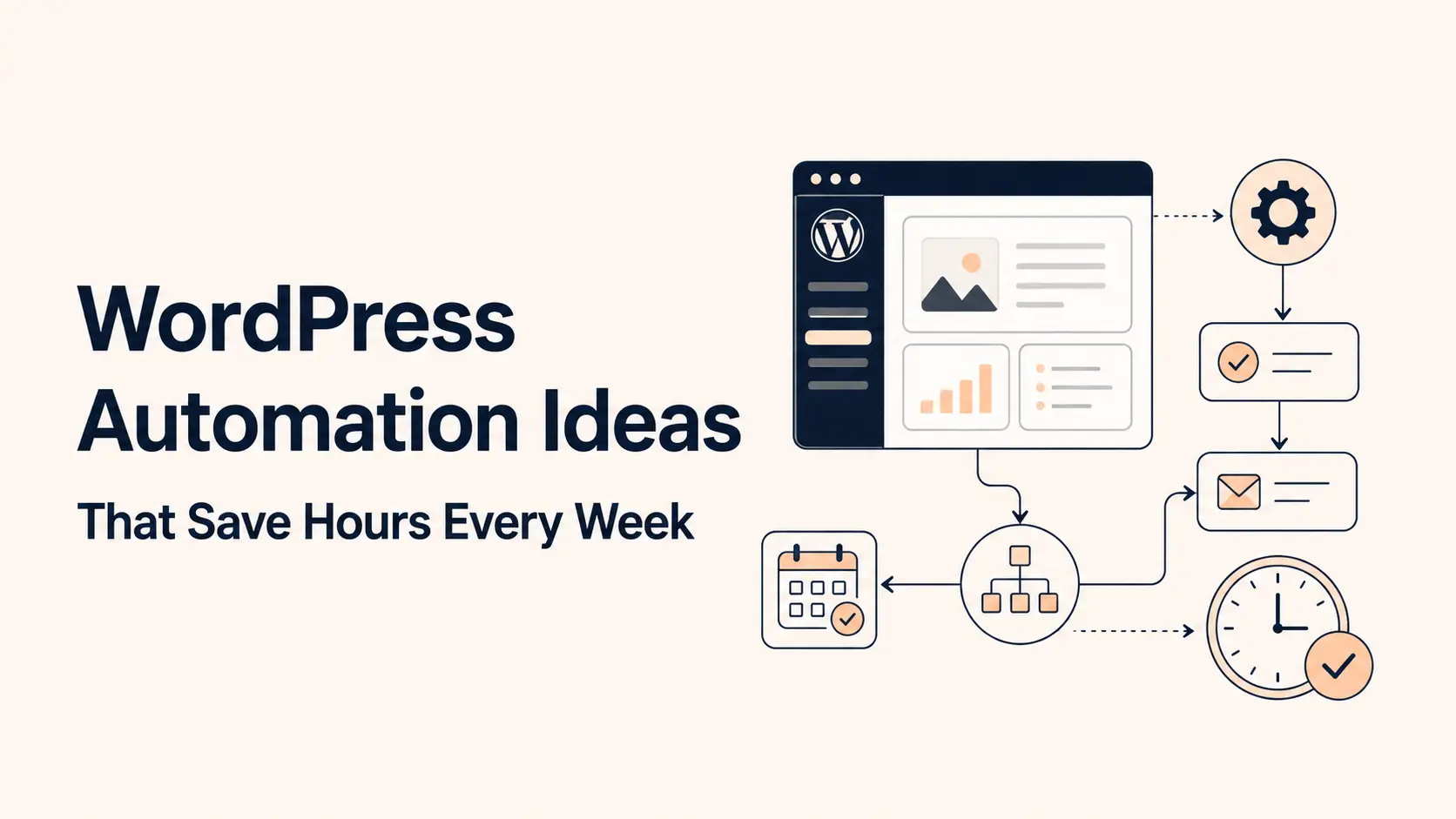


WordPress automation works best when it removes repetitive work without hiding important decisions. A useful workflow has a clear trigger, moves the right data, performs a specific action, records what happened, and alerts a person when something needs review.
The WordPress automation ideas below focus on leads, WooCommerce, content, reporting, and routine site administration. You do not need to automate everything. Start with one task that happens often, follows clear rules, and is easy to verify.
TL;DR: The fastest wins usually come from form-to-CRM handoffs, lead routing, targeted team notifications, WooCommerce follow-up, content distribution, recurring reports, and routine admin work. Keep human approval for publishing, refunds, deletions, and other high-impact actions.
- Start with one repetitive, low-risk task.
- Define the trigger, conditions, action, and owner.
- Log what the workflow changes and what happens when it fails.
- Use AI only when classification, summarization, or draft generation is actually needed.
- Test with real edge cases before expanding the automation.
What WordPress automation actually means
WordPress automation is a rule-based process that runs when something happens on your site or at a scheduled time. The trigger might be a form submission, WooCommerce order, new post, user event, status change, or scheduled task. The workflow then checks conditions and performs one or more actions.
WordPress provides several technical building blocks for this. WordPress hooks let plugins and custom code react at specific points in WordPress. The WordPress REST API lets authenticated applications read or update site data. WooCommerce can send webhooks when orders, products, customers, or other resources change.
Time-based tasks commonly use WP-Cron or background queues. WordPress documents that WP-Cron is triggered by page loads, so low-traffic sites can run scheduled work later than the exact clock time. That distinction matters for reports, follow-up, and other time-sensitive WordPress automation.
1. Send form submissions to the right system automatically
A contact form becomes more useful when the submission immediately reaches the system where the next step happens. Instead of leaving every message in the WordPress database or relying on manual forwarding, you can create a CRM lead, open a support ticket, add a row to a spreadsheet, or notify the right team. This is one of the simplest forms of WordPress form automation.
Do not send every form to the same destination. Use the form type, selected service, budget, location, account status, or other fields as conditions. A general question can stay in email, while a qualified project inquiry can create a lead and assign a follow-up task.
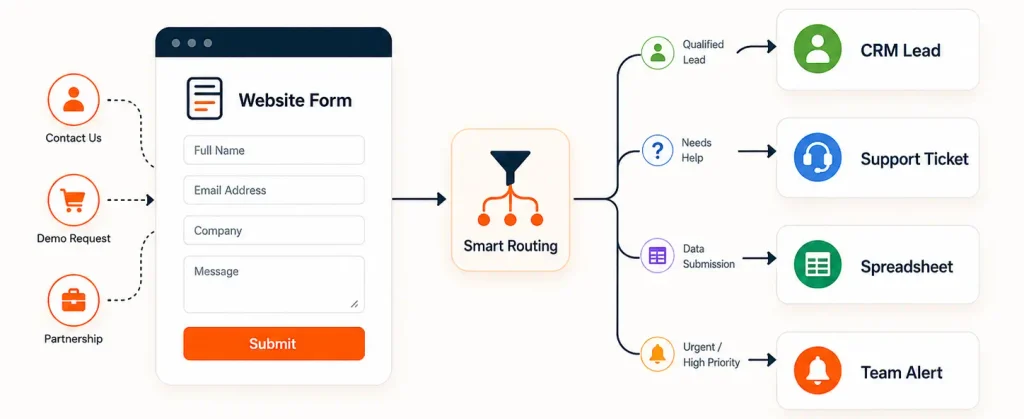
Before creating a new contact, check whether the email or another stable identifier already exists. Updating an existing record keeps the CRM cleaner and reduces duplicate follow-up. Store the original source and submission URL so the team can trace where the lead came from.
2. Qualify and route leads before someone touches the CRM
Lead capture is only the first step. A better WordPress workflow can classify the inquiry, assign the right owner, set the lead source, add tags, and create the next task. For teams handling several service lines, lead generation automation can remove the repetitive routing work that happens before a salesperson makes a decision.
Keep the rules simple and explainable. For example, route ecommerce projects to one team, SEO inquiries to another, and low-information submissions to a review queue. If you use AI to classify free-text messages, restrict it to a narrow job and keep a fallback when the output is uncertain.
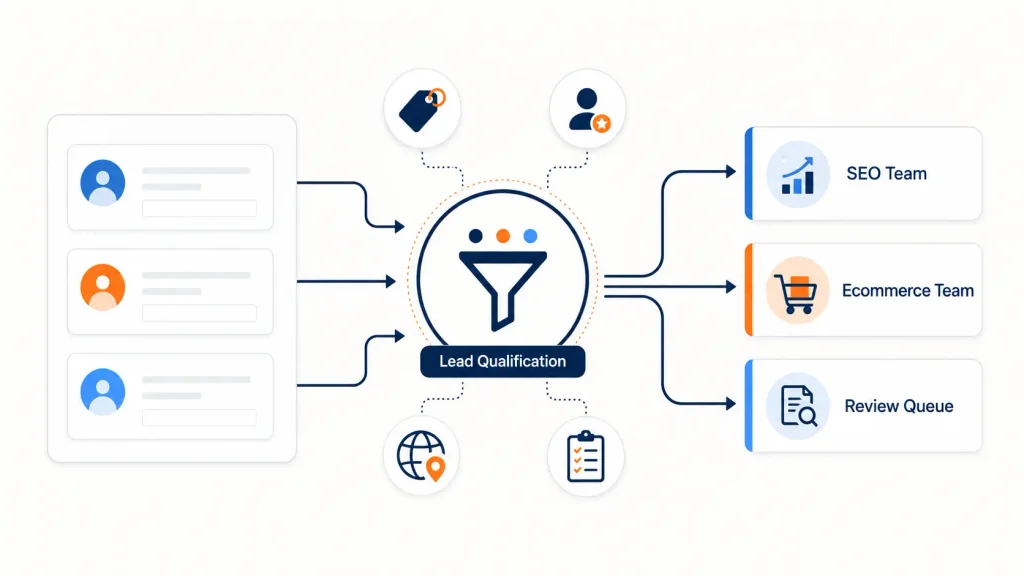
The goal is not to replace sales judgment. It is to make sure the right person receives a useful, complete record without copying fields between tools or spending time deciding who should own the lead.
3. Notify the right team only when an event deserves attention
Notifications are easy to automate and easy to overdo. Sending every WordPress event to Slack, Microsoft Teams, or email quickly creates another noisy inbox, so high-volume notifications should be filtered before they reach people.
Useful alerts include a high-value WooCommerce order, failed payment, form from a target account, membership cancellation, workflow failure, or lead that matches your qualification rules. Include enough context to act immediately: who or what triggered the event, the record URL, the amount where relevant, and the next expected action.
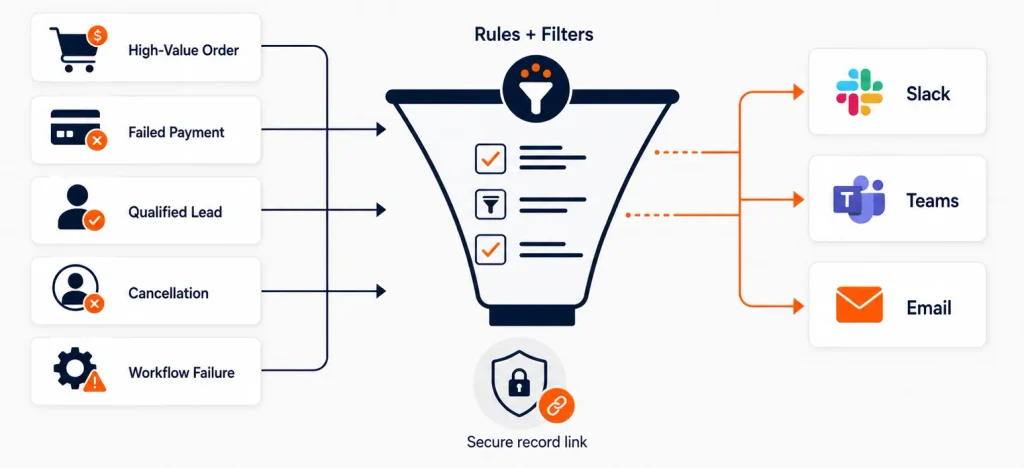
Avoid copying sensitive customer data into channels that do not need it. A short notification with a secure link back to the source record is often safer and easier to maintain than duplicating the full payload.
4. Automate WooCommerce order follow-up
WooCommerce supports webhooks and background scheduled actions, which makes order automation practical. A workflow can react when an order is created, paid, completed, refunded, or updated, then pass the right data to fulfillment, a CRM, support, or another internal process. For larger stores, dedicated WooCommerce automation can coordinate several of those handoffs.
Good follow-up depends on timing. Fulfillment and payment alerts are immediate. Onboarding messages may wait until payment is confirmed. Review requests should wait until the customer has had enough time to receive and use the product. WooCommerce also exposes Scheduled Actions in the admin, which is useful when you need to inspect background tasks and failures.
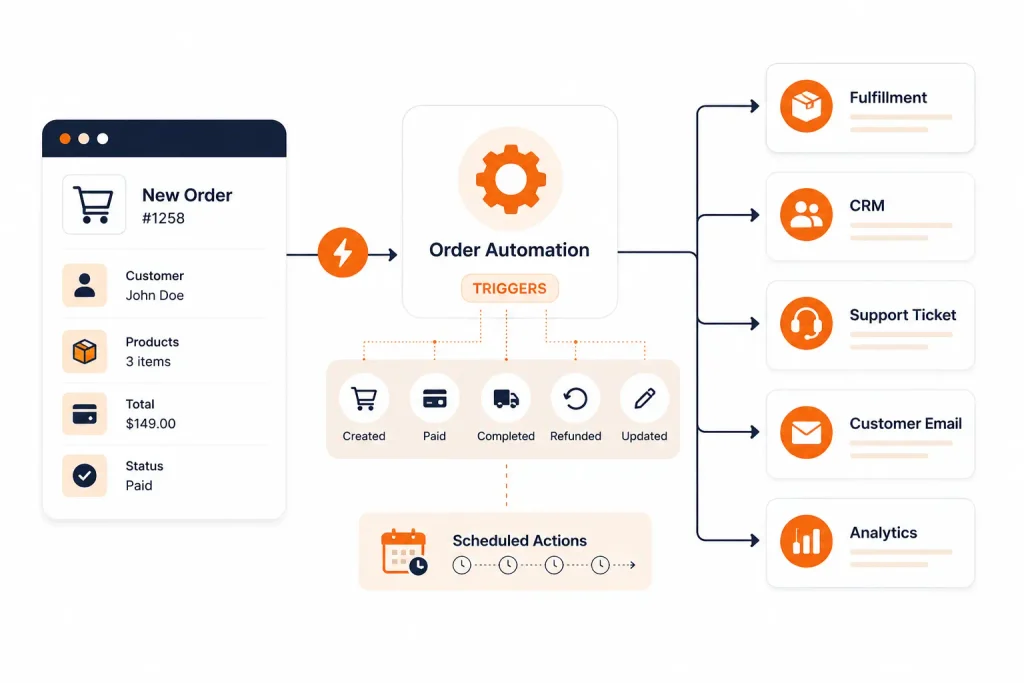
Keep transactional operations separate from marketing. A failed payment workflow should focus on resolving the payment, while a later retention or re-engagement workflow can handle marketing when it is appropriate.
5. Keep selected customer data synchronized
Customer data often lives in WordPress, WooCommerce, a CRM, an email platform, and sometimes a spreadsheet. Manual updates cause records to drift, which leads to wrong segments, duplicate contacts, or teams working from outdated information.
WordPress automation can synchronize selected fields such as email address, company, customer status, subscription state, account owner, or lead stage. The important design decision is deciding which system owns each field before you connect the systems.
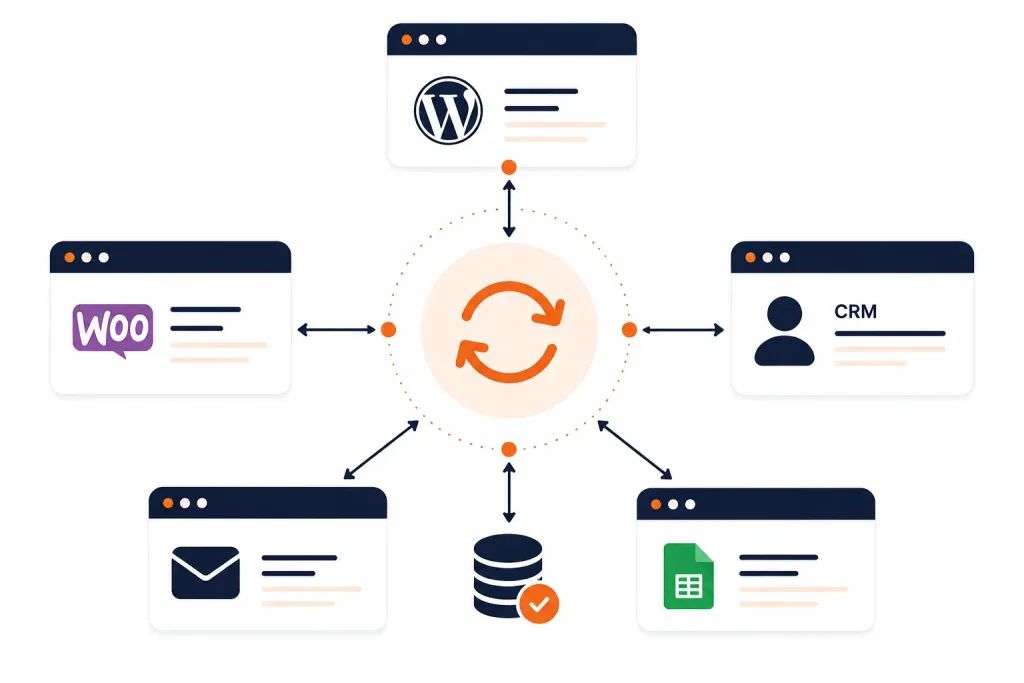
Avoid careless two-way synchronization. If two systems can overwrite the same field without a clear source of truth, you can create loops or replace newer data with older data. Start with one-way synchronization and add reverse updates only when the ownership rules are explicit.
6. Turn publishing into a content distribution workflow
Publishing a WordPress post is often the start of several repetitive tasks: notify the content team, add the URL to a tracking sheet, prepare social posts, update a content calendar, or queue a newsletter item. A social media automation workflow can prepare those next steps as soon as the post reaches the right status.
Keep the distinction between preparation and publishing. Automation is reliable at moving structured data, creating tasks, and generating repeatable drafts. Public-facing messages still benefit from review because channel context, timing, claims, and tone can change.
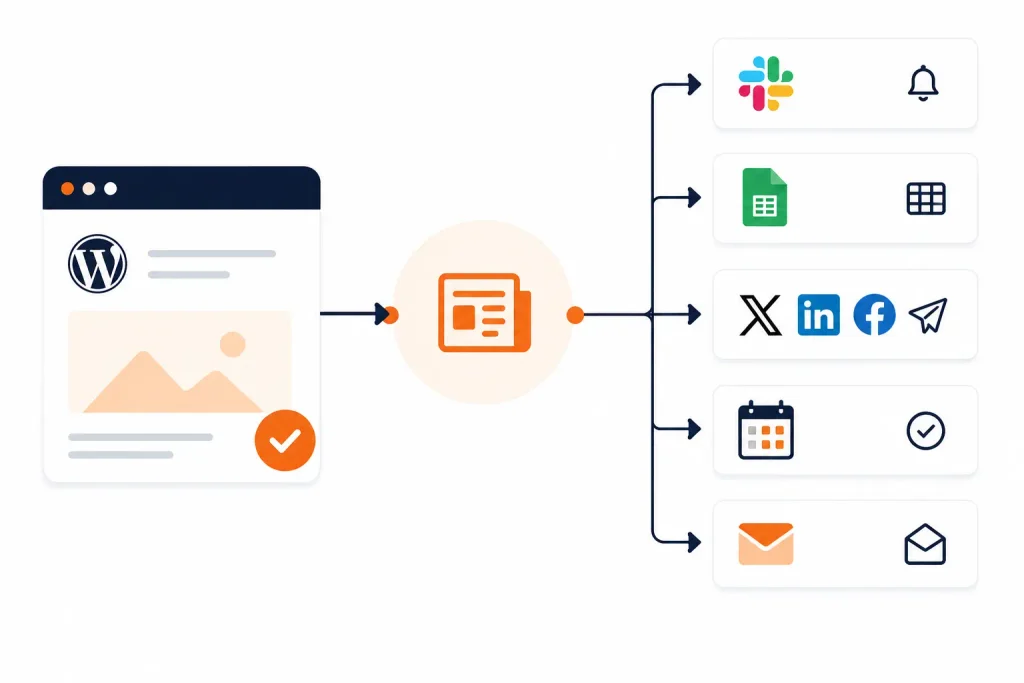
A useful pattern is to create channel-specific drafts with the post URL and approved source text attached, then let a person approve or edit them. That removes copy-paste work without turning your WordPress publishing process into blind auto-posting.
7. Generate narrow AI-assisted drafts from approved source data
AI automation is most useful when the job is constrained. Instead of asking a model to “write marketing content,” give it a specific source, audience, output format, and rule set. Tenfic’s AI content automation approach is built around that kind of source-controlled workflow rather than unsupervised publishing.
Practical examples include drafting a meta description from an approved article, turning a product description into three social variations, summarizing an internal form submission, extracting action items from a brief, or creating a first-pass outline from research notes.
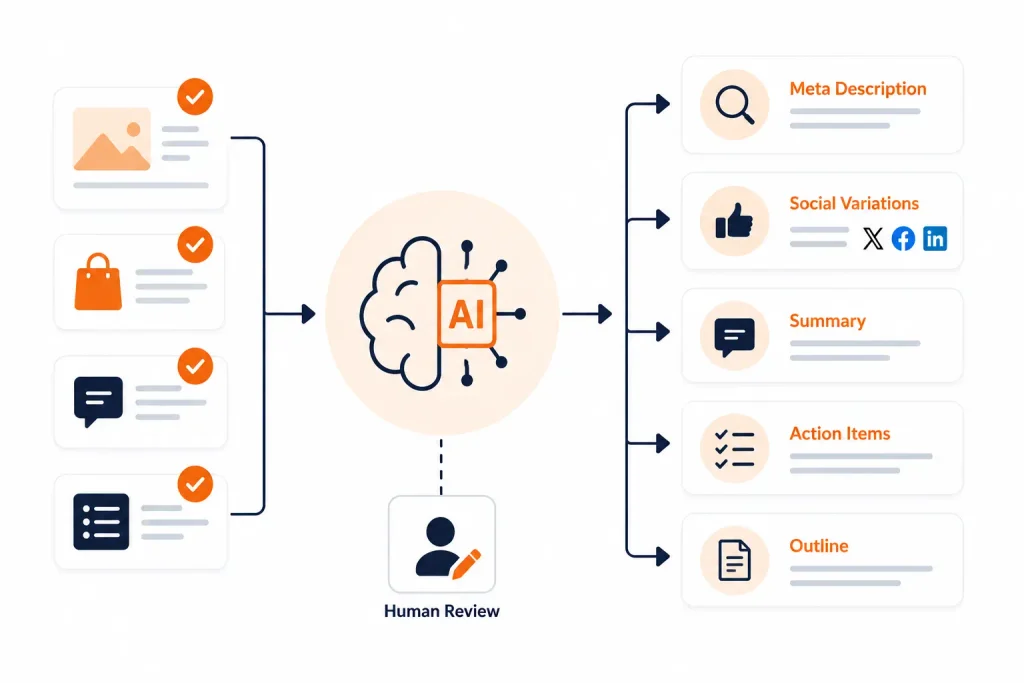
Define what the workflow may use and what it must not invent. Store the source URL or record ID with the output when possible. For important content, send the draft to an editor rather than publishing it automatically.
8. Automate routine WordPress administration
Some of the best WordPress automation ideas are small. You can assign a taxonomy term when a custom field changes, move a record to the next status, create an editorial task, notify an owner when content is ready, or update a related record after approval.
These workflows are useful because the inputs and outputs are clear. They are also easier to test than broad automations that touch several systems. A reliable status-change workflow can save more time than a complicated automation that fails on edge cases.
Do not automate maintenance simply because a task is repetitive. Plugin updates, database changes, deletions, permission changes, and security-related actions can have wider consequences. Use backups, staging, approval, or monitoring when the risk justifies it.
9. Build scheduled reports without manual copying
If someone copies the same numbers into a report every Monday, that is a strong automation candidate. Pull the required data, format only the metrics people use, and send the report on a schedule instead of rebuilding the same spreadsheet or email by hand.
Useful WordPress and WooCommerce reports might include new leads, qualified leads, orders, refunds, failed payments, form volume, publishing output, workflow failures, or important site-health exceptions. Keep the report tied to decisions. A short exception-focused report is usually more useful than a large data dump.
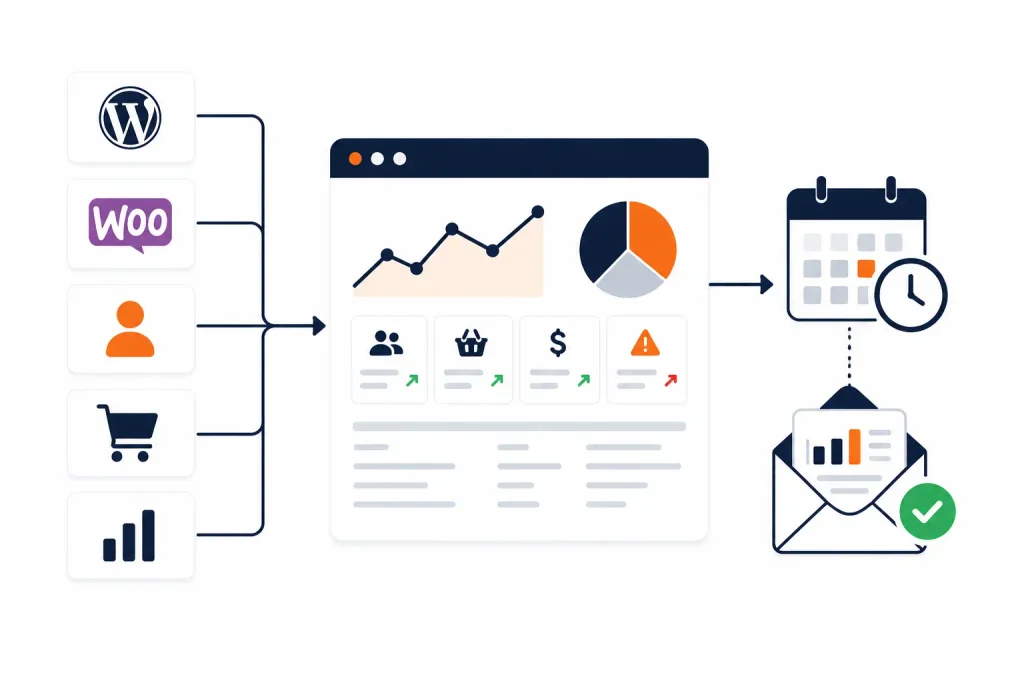
Remember the scheduling layer. Because WP-Cron depends on page loads, low-traffic sites can run scheduled tasks late. If timing matters, use a reliable server-side cron or managed queue and monitor whether the scheduled job actually completed.
10. Add logging, retries, and human approval to critical workflows
A workflow is not reliable just because the happy path works. You also need to know what happens when an API times out, a webhook fails, a required field is missing, or the destination rejects the request. This is a core part of workflow automation, not an optional extra.
Log the workflow run, the record involved, the step that failed, and enough context to retry safely. Where possible, make retries idempotent: repeating the same request should not create a second contact, task, order, invoice, or notification.
Add approval before actions that are hard to reverse or easy to misuse. Publishing, deleting records, issuing refunds, changing customer access, and sending high-impact messages are good examples. Automation should speed up the normal path without hiding exceptions.
How to choose the first WordPress automation
Start with a task that is repeated often, follows the same rules most of the time, and has an obvious success condition. Frequency and reliability matter more than how impressive the workflow looks.
- Write down the manual steps. Include the decision points, not just the clicks.
- Identify the trigger and required data. Decide what information must exist before the workflow can run.
- Choose the source of truth. Decide which system owns each field after data moves.
- Define the failure path. Decide who is alerted, what gets logged, and whether the workflow can retry.
- Test before expanding. Use a low-risk scenario and real edge cases before you depend on the automation.
A five-minute task done once a month is usually less valuable than a two-minute task repeated dozens of times each week. Start where the repetition is high and the cost of a mistake is low.
WordPress automation tools: choose by workflow, not feature count
You can automate WordPress with native hooks, WP-Cron, REST API endpoints, WooCommerce webhooks, plugin-specific actions, or an external workflow platform. If several systems, branches, transformations, retries, or approvals need to be coordinated, an orchestration tool such as n8n can be a better fit. Tenfic also provides dedicated n8n automation services for those multi-system workflows.
Use native WordPress features when the workflow stays inside WordPress and is simple to maintain. Use webhooks or the REST API when data needs to move between WordPress and another application. Use a workflow platform when the process spans several tools or needs centralized monitoring and error handling.
Whatever tool you choose, document the trigger, credentials, data mapping, owner, failure path, and recovery steps. That documentation is more valuable than adding another automation nobody understands six months later.
Common mistakes to avoid
- Automating a broken process. If the manual workflow is unclear, automation usually makes the confusion run faster.
- Creating duplicate records. Check for existing contacts, tasks, orders, or other records before creating new ones.
- Ignoring failures. A silent workflow failure can be worse than a manual task because nobody knows the work was missed.
- Using two-way sync without ownership rules. Decide which system is authoritative for each field.
- Publishing AI-generated content without editing. Review claims, tone, links, sources, and context before anything goes public.
- Automating high-risk actions without approval. Refunds, deletions, access changes, and public publishing need stronger controls.
Start with one workflow you can verify
The best WordPress automation is usually not the most complicated workflow. It is the one that removes a repeated handoff, reduces copy-paste work, and still makes failures visible.
Pick one task this week, map the trigger, conditions, action, and failure path, then automate it. Once it runs reliably, expand from there instead of building a large automation system before you know what actually saves time.
Frequently asked questions
What is WordPress automation?
WordPress automation is a workflow that performs predefined actions when a trigger occurs or a schedule runs. It can move data, update records, send notifications, create drafts, or connect WordPress with external systems.
What are the best WordPress tasks to automate first?
Start with high-frequency, low-risk tasks with clear rules. Form-to-CRM handoffs, lead routing, team notifications, status updates, content distribution, and recurring reports are usually easier to verify than complex business logic.
Can WordPress automate tasks without a plugin?
Yes. WordPress hooks, the REST API, and WP-Cron can support custom automation without a dedicated automation plugin. The best approach depends on the workflow and whether you want to maintain custom code.
Can WooCommerce orders trigger automations?
Yes. WooCommerce supports webhooks for order, product, customer, and other events, and it uses scheduled actions for many background processes. Those events can trigger fulfillment, CRM, reporting, notification, and follow-up workflows.
Is AI required for WordPress automation?
No. Most WordPress automation is deterministic: when a known event occurs, perform a known action. AI is useful for classification, summarization, extraction, or draft generation, but it should not be added where simple rules are more reliable.
How do I make WordPress automation reliable?
Use clear conditions, validate required data, log each run, monitor failures, make retries safe, and add human approval for risky actions. Test real edge cases before you depend on the workflow.