
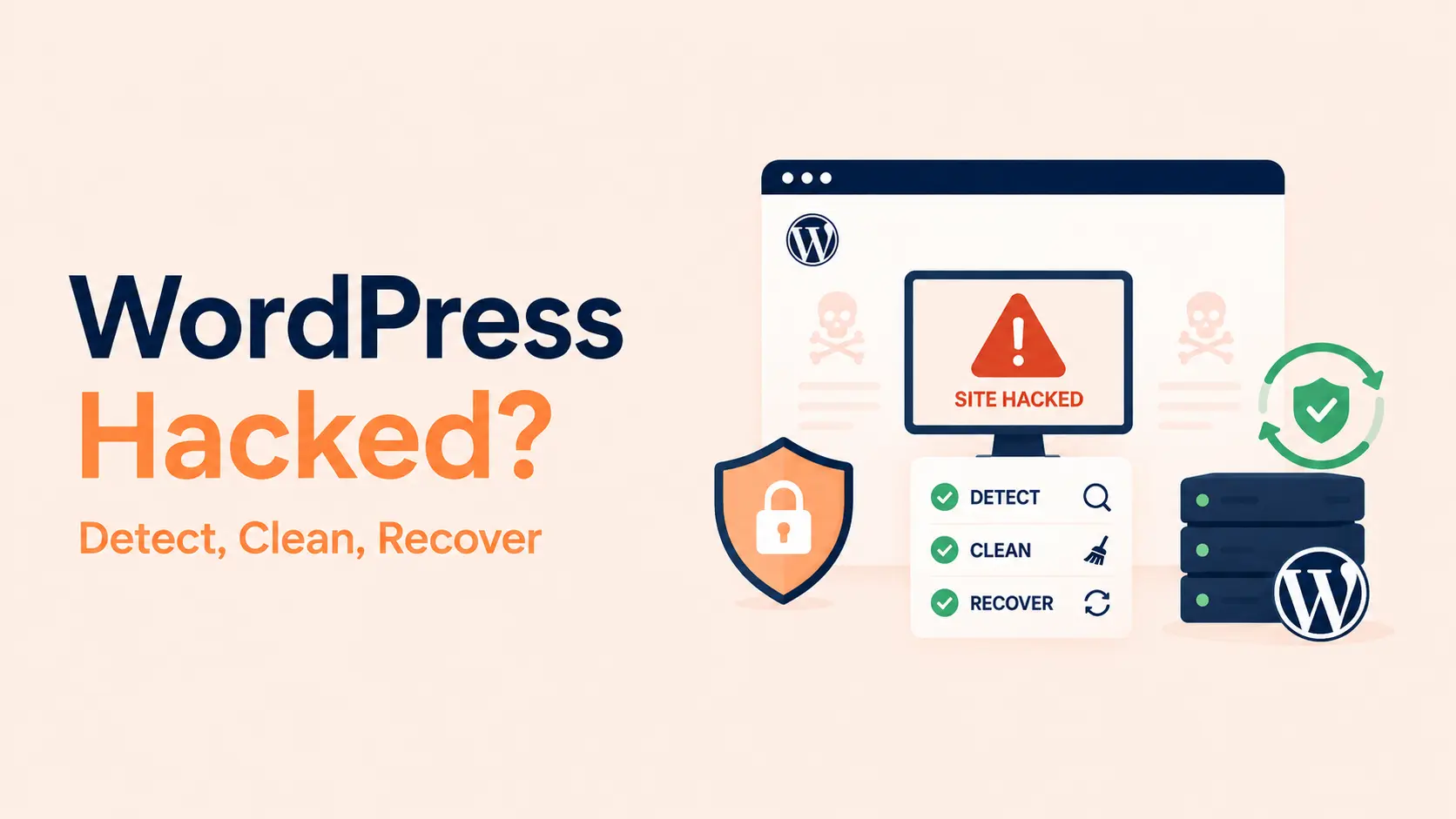

A hacked WordPress website needs a controlled recovery process, not random file deletion. The goal is to confirm the compromise, contain it, remove malicious changes and persistence, restore trust, and close the weakness that allowed the attacker in.
Common warning signs include unexpected redirects, new administrator accounts, spam pages in Google, modified plugin or theme files, malware warnings, unfamiliar scheduled tasks, changed settings, and unexplained server activity. WordPress recommends treating these symptoms as indicators of compromise rather than assuming every unusual behavior has the same cause. See the official WordPress hacked-site guidance.
- Confirm the compromise before deleting files or restoring backups.
- Preserve a copy of the affected site and relevant logs when possible.
- Contain the incident, remove unauthorized access, and identify persistence.
- Replace compromised WordPress core, plugins, and themes with trusted copies instead of editing malicious code line by line when a clean replacement is available.
- Inspect the database, users, cron jobs, uploads, configuration, and server-level files—not only plugins.
- Rotate WordPress, hosting, database, SSH/SFTP, email, API, and other credentials after cleanup.
- Restore only from a backup you believe predates the compromise.
- Patch the original entry point before returning the site to normal operation.
- If Google reports a security issue, fix the entire site and request a review only after verification.
Signs Your WordPress Website May Be Hacked
A single symptom does not always prove a breach, but multiple indicators should trigger an investigation.
| Warning sign | What it may indicate |
|---|---|
| Visitors are redirected to unrelated domains | Malicious JavaScript, database injection, compromised plugin/theme, or server rule |
| Unknown administrator accounts appear | Stolen credentials, privilege escalation, or persistent attacker access |
| Google shows spam pages you never created | Injected content, doorway pages, or malicious URL generation |
| Hosting provider suspends the site | Malware, outbound spam, abusive processes, or compromised files |
| Files change without a legitimate deployment | Modified core/plugin/theme files or a backdoor |
| Security tools report malware | Malicious PHP, JavaScript, redirects, loaders, or obfuscated code |
| The site keeps getting reinfected | The original entry point or persistence mechanism remains |
Google Search Console’s Security Issues report can also identify hacked content, malicious redirects, phishing, injected pages, and other harmful behavior. Google notes that sample URLs may not represent every affected page, so cleanup should cover the full site.
1. Confirm the Compromise Before You Start Cleaning
Do not assume every broken page is malware. Plugin conflicts, expired certificates, DNS problems, caching, or failed updates can produce strange symptoms too.
Check:
- Search Console Security Issues;
- hosting or security-provider alerts;
- WordPress users and recent administrator changes;
- recently modified files;
- server access and error logs;
- unfamiliar plugins, themes, cron jobs, or scheduled tasks;
- unexpected pages returned by a
site:search; - suspicious redirects in
.htaccess, server configuration, theme files, or the database.
If Google provides an infected example URL, its guidance recommends avoiding casually opening a dangerous page in a normal browser. Use safer diagnostic tools, Search Console, source inspection, or an isolated environment instead.
2. Preserve Evidence and Take a Backup of the Current State
Even an infected backup can be useful for investigation.
Before making large changes, preserve a copy of the current files and database when practical. Keep server logs, security alerts, timestamps, and other evidence that may help identify when and how the incident began.
Do not overwrite your only known-good backup with the compromised site.
The official WordPress backup guidance recommends backing up both the database and files. For recovery, the critical question is whether a backup actually predates the compromise.
3. Contain the Incident
If the site is actively distributing malware, phishing visitors, redirecting traffic, sending spam, or exposing customer data, reduce exposure while you investigate.
Depending on the situation, containment may include:
- enabling a maintenance response;
- blocking known malicious IPs or requests;
- restricting admin access;
- disabling a vulnerable plugin or integration;
- isolating the affected hosting account;
- stopping compromised API keys or credentials.
Do not permanently destroy evidence just to make the visible symptom disappear.
For an ecommerce or membership site, containment decisions should account for active orders, customer accounts, and business continuity.
4. Remove Unauthorized Users and Sessions
Review every WordPress administrator and other privileged account. Remove accounts that cannot be verified.
Change passwords for legitimate administrators and revoke active sessions. Check whether attacker-created users exist in the database even if they are not obvious in the normal interface.
Then review roles and capabilities. A compromised editor account may have been promoted or given unexpected privileges.
For future protection, use unique passwords and MFA. OWASP’s authentication guidance recommends MFA as one of the strongest defenses against password-related account compromise.
5. Replace WordPress Core With a Trusted Copy
Do not keep suspicious core files merely because the site still loads.
Replace WordPress core files with clean files from a trusted source while preserving the files and configuration that legitimately belong to the site. Compare the installation against the expected WordPress version and investigate unexpected PHP files in locations where they should not exist.
A modified core file is often easier and safer to replace than to manually remove injected code.
6. Reinstall Plugins and Themes From Trusted Sources
Delete abandoned, pirated, nulled, or unnecessary extensions.
For plugins and themes that must remain, reinstall trusted clean copies rather than assuming a malware scanner found every modified line. Custom themes or plugins should be compared against a known-good repository or backup.
Pay attention to recently exploited, outdated, or unsupported extensions. If an extension created the entry point, cleaning the malware without patching or replacing that extension will often lead to reinfection.
Tenfic’s guide on how many WordPress plugins are too many explains why plugin quality and maintenance matter more than the raw plugin count.
7. Inspect the Uploads Directory and Other Writable Locations
Attackers often try to place persistent PHP files in writable directories.
Inspect wp-content/uploads, cache directories, temporary folders, backup folders, and other writable locations for unexpected executable files. Image directories normally should not contain random PHP backdoors.
Also inspect .htaccess, wp-config.php, server-level configuration, MU plugins, drop-ins, and files loaded before normal theme execution.
Do not delete a file solely because its name looks unfamiliar. Establish whether it belongs to WordPress, your hosting stack, or a legitimate plugin first.
8. Check the Database for Injected Content and Persistence
A file-only cleanup is incomplete if malicious code remains in the database.
Review:
- WordPress users and user metadata;
wp_optionsand autoloaded options;- widget and theme settings;
- posts and pages containing injected scripts or spam links;
- suspicious scheduled events;
- unfamiliar plugin settings;
- redirects or JavaScript stored in page-builder content;
- unknown serialized values added by the attacker.
Take care with serialized WordPress data. Blind search-and-replace operations can corrupt it.
9. Review Cron Jobs, Scheduled Tasks, and External Integrations
Persistent malware may recreate deleted files through WordPress cron, server cron, webhooks, CI/CD tasks, compromised API credentials, or external automation.
Review both WordPress scheduled events and hosting-level cron jobs. Check integrations with deployment systems, email platforms, cloud storage, payment gateways, DNS/CDN providers, and automation tools.
If the site returns to an infected state shortly after cleanup, persistence outside the obvious plugin/theme files should be a primary suspect.
10. Rotate Credentials and WordPress Security Keys
After unauthorized access has been removed, rotate credentials that could allow the attacker back in.
Prioritize:
- WordPress administrator passwords;
- hosting/control-panel credentials;
- SSH/SFTP accounts and keys;
- database credentials;
- email accounts connected to password resets;
- API keys and application passwords;
- CDN/DNS credentials;
- deployment and repository secrets.
Also regenerate WordPress authentication salts/security keys so existing login cookies become invalid.
Changing only the WordPress admin password is insufficient if the attacker stole hosting, database, or API credentials.
11. Restore From Backup Only When the Backup Is Trustworthy
Restoring a backup can be the fastest recovery route, but only if the backup is older than the compromise and the original vulnerability is fixed.
Before restoring, ask:
- When did the compromise probably begin?
- Is the backup from before that date?
- Does it include both files and database?
- Can it be restored in an isolated environment first?
- Will restoring reintroduce a vulnerable plugin or old credentials?
A clean backup plus an unpatched vulnerability is not a complete recovery.
12. Patch the Entry Point Before Returning to Normal
Cleanup is only half the job.
Identify the most plausible initial access path: vulnerable plugin/theme, stolen credentials, compromised hosting account, insecure integration, leaked key, malicious administrator, weak file permissions, or another server-level weakness.
Then patch it.
The WordPress hardening guide covers updates, permissions, credentials, backups, configuration, and other defensive controls. Tenfic’s complete WordPress security guide provides a broader prevention checklist after recovery.
13. Verify the Cleanup From Multiple Angles
Before declaring the site clean:
- scan files again;
- compare WordPress core/plugins/themes to trusted copies;
- verify administrators and roles;
- inspect front-end pages on mobile and desktop;
- test forms, checkout, login, password reset, and integrations;
- check redirects and response headers;
- monitor server logs for recurring suspicious requests;
- inspect Search Console for remaining security issues;
- confirm new malicious files are not reappearing.
Monitor closely after reopening the site. Reinfection within minutes or hours is strong evidence that persistence or the entry point remains.
14. Request a Google Security Review When Necessary
If Search Console shows a security issue, fix every listed issue across the site before requesting review. Google explicitly says repairing only some affected URLs is not enough.
After cleanup and verification, submit a review through the Security Issues report. Google says review timing can range from a few days to a few weeks depending on the issue.
Do not request review while the site is still producing malicious pages or redirects; repeated failed reviews only delay recovery.
15. Build a Post-Incident Security Plan
Once the site is clean, document what happened and what changed.
At minimum:
- keep WordPress, plugins, themes, and PHP supported and updated;
- remove unused extensions and accounts;
- enforce MFA for privileged users;
- maintain off-site recoverable backups;
- monitor file changes and administrator activity;
- review WAF/CDN rules and login protection;
- monitor logs and Search Console;
- test backup restoration periodically;
- document who is responsible for security alerts and incident response.
Tenfic’s broader website security checklist can be used as the ongoing maintenance baseline.
Conclusion
A successful WordPress hack recovery does more than remove visible malware. You need to remove unauthorized access, eliminate persistence, restore trusted software and data, rotate exposed credentials, identify the entry point, and verify that the compromise does not return.
If you cannot determine what changed or how the attacker gained access, consider professional incident-response help rather than repeatedly deleting suspicious files. A site that looks clean but still contains a backdoor is not recovered.
Frequently Asked Questions
How do I know if my WordPress site has been hacked?
Common indicators include malicious redirects, unknown administrator accounts, spam pages in Google, malware warnings, modified files, unexpected PHP files, suspicious scheduled tasks, or a hosting suspension. Confirm the evidence before beginning cleanup.
Can I clean a hacked WordPress site with a security plugin?
A security plugin can help detect malicious files and indicators, but it should not be your only recovery method. You also need to inspect users, database content, writable directories, scheduled tasks, credentials, integrations, and the original vulnerability.
Should I restore a backup immediately after a WordPress hack?
Only if you have reason to believe the backup predates the compromise. Restoring an infected backup or restoring before patching the entry point can simply recreate the problem.
Should I delete all suspicious WordPress files?
No. Preserve evidence first and determine what each file is. Replace compromised WordPress core, plugins, and themes with trusted copies where practical, but avoid deleting unfamiliar files without understanding whether they belong to the site or hosting environment.
Why does my WordPress website keep getting hacked again after cleanup?
Recurring infections usually mean the entry point or persistence mechanism remains. Check vulnerable extensions, stolen credentials, cron jobs, writable directories, server-level files, external integrations, database injections, and administrator accounts.
What passwords should I change after a WordPress hack?
Rotate WordPress admin, hosting panel, SSH/SFTP, database, connected email, API/application passwords, DNS/CDN, and deployment credentials that may be exposed. Regenerate WordPress salts to invalidate existing login cookies.
How do I remove a Google hacked-site warning?
Fix the compromise across the whole website, verify that malicious content and behavior are gone, then request a review in Google Search Console’s Security Issues report. Google may take several days or longer to complete the review.
