
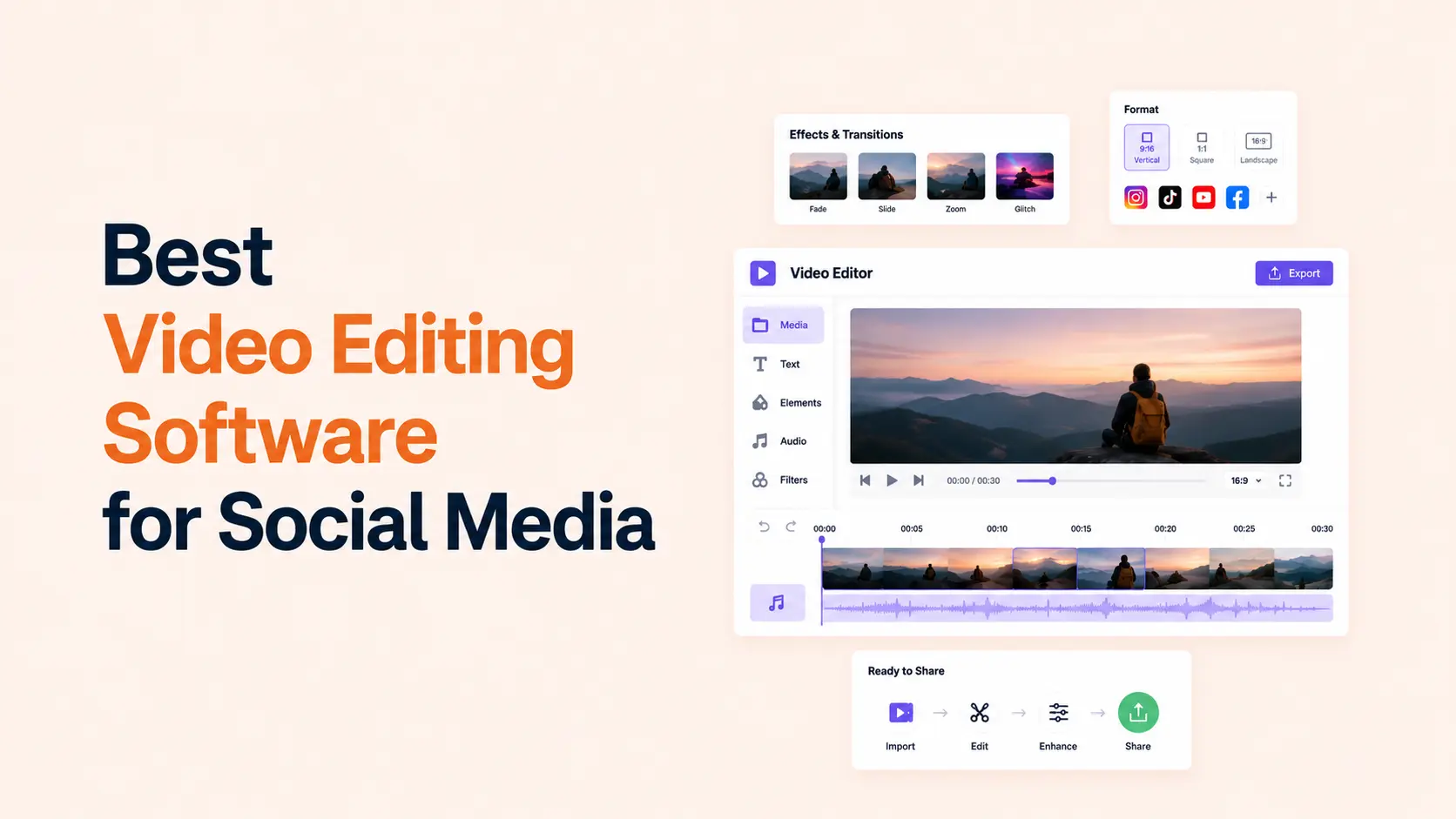

CapCut is the best video editing software for social media for most creators and marketers in 2026. It is built around the jobs social teams repeat every day: vertical editing, auto captions, quick templates, long-video-to-short clips, subject tracking, music, effects, and fast exports for TikTok, Instagram Reels, and YouTube Shorts.
That does not make CapCut the best editor for every workflow. Adobe Premiere gives agencies and professional editors much deeper control. DaVinci Resolve is the strongest free desktop option. Descript is faster for turning interviews, webinars, and podcasts into clips. Canva is easier when video sits inside a broader brand-content workflow.
The right choice depends on how often you publish, where the footage comes from, how much control you need, and whether one person or a team handles production. This guide compares the tools on those practical differences rather than ranking them by the longest feature list.
TL;DR
For most social-first workflows, start with CapCut. Move to a heavier editor only when your footage, client requirements, color work, collaboration, or long-form production actually needs it.
- Best overall for social media: CapCut.
- Best for professional teams and client work: Adobe Premiere.
- Best free professional editor: DaVinci Resolve.
- Best for podcasts, interviews, and talking-head repurposing: Descript.
- Best for marketers who already design in the same workspace: Canva.
- Best for Mac and iPad creators: Final Cut Pro.
- Best beginner desktop editor: Wondershare Filmora.
- Best browser-based editor for remote teams: VEED.
Best video editing software for social media compared
| Software | Best for | Platforms | Strongest social feature | Free option | Current paid reference |
|---|---|---|---|---|---|
| 1. CapCut | High-volume Reels, TikTok, Shorts | Windows, macOS, web, iOS, Android | Auto captions, long video to shorts, vertical templates | Yes | Standard/Pro pricing varies by region and platform |
| 2. Adobe Premiere | Agencies, brands, advanced editors | Windows, macOS, iPhone, Android | Text-Based Editing, Auto Reframe, Frame.io workflow | Mobile app is free; desktop trial | $22.99/mo, annual billed monthly |
| 3. Descript | Talking-head, podcast and webinar clips | Windows, macOS, web | Edit by transcript, Create Clips, captions, Studio Sound | Yes | Hobbyist from $16/mo billed annually |
| 4. DaVinci Resolve | Best free pro editing and color | Windows, macOS, Linux, iPad | Full editing, color, audio and VFX in one app | Yes | Studio $295 one time |
| 5. Canva | Marketing teams and branded social content | Web, desktop, iOS, Android | Templates, captions, Magic Resize, brand assets | Yes | US App Store: Pro $14.99/mo or $119.99/yr |
| 6. Final Cut Pro | Mac/iPad creators | macOS, iPadOS | Smart Conform, captions, fast Apple-silicon workflow | Trial/subscription options | $299.99 one time, or Creator Studio $12.99/mo |
| 7. Filmora | Beginner desktop editing | Windows, macOS | Smart Short Clips, captions, templates, AI tools | Free editor with export limits | Basic $49.99/yr; Advanced $59.99/yr |
| 8. VEED | Browser editing and remote teams | Web, iOS, Android | Auto subtitles, clips, translation, browser collaboration | Yes | Paid plans available; check live workspace pricing |
Pricing was checked in August 2026 and can vary by country, taxes, platform, promotion, seat count, or app-store billing.
How I ranked social media video editors
Social media editing has a different priority order from film or broadcast editing. A tool can have excellent color science and still be slow for a marketer who needs six vertical clips before lunch. I weighted the repetitive social workflow more heavily.
- Short-form speed: how quickly you can cut, caption, resize, and export a vertical video.
- Caption workflow: automatic transcription, caption styling, corrections, and multilingual support.
- Repurposing: turning one long recording into several platform-specific clips without rebuilding the edit.
- Creative control: timeline precision, audio cleanup, motion, masking, color, keyframes, and export control.
- Brand consistency: reusable layouts, fonts, templates, logos, safe zones, and team assets.
- Collaboration: comments, review links, cloud projects, handoff, and multi-editor workflows.
- Value: what the free or paid plan actually gives a social creator, not the number of features on the pricing page.
1. CapCut: Best overall video editor for social media
CapCut is the easiest first recommendation when the output is primarily TikTok, Instagram Reels, YouTube Shorts, Facebook video, or paid social creative. Its workflow is built around vertical content rather than adapting a traditional post-production tool to social media.
The strongest advantage is speed. CapCut can generate captions, identify highlights in longer footage, convert 16:9 video into 9:16 clips, track the subject while reframing, sync edits to music, and apply templates or effects without sending the project through several separate apps. The same account can move between mobile, desktop, and web.
- Auto captions for fast subtitle creation and styling.
- Long video to shorts for podcast, webinar, interview, and YouTube repurposing.
- Smart crop and subject tracking when converting horizontal footage to vertical.
- Templates, effects, music, text, and transitions that are already designed around short-form formats.
- AI-assisted tools for scripting, voice, cleanup, generation, and repetitive editing tasks.
CapCut now has a Standard plan and an upgraded Pro plan. CapCut does not publish one fixed global subscription price because pricing changes by region, platform, account, and promotion. The current Pro structure includes 1,200 AI credits and 1TB of cloud storage for new subscribers.
Where it fits best: creators, social media managers, small brands, UGC editors, and teams producing a high volume of short-form content. The main limitation is that template-heavy editing can make different brands look similar, so serious teams should build their own repeatable visual system instead of copying every trend.
2. Adobe Premiere: Best for professional social media production
Adobe Premiere is the better choice when social videos are part of a larger production workflow. It handles short-form content well, but it also gives you the timeline precision, codecs, audio tools, color controls, multicam editing, motion integration, and project organization needed for client campaigns and long-form work.
Premiere has become more social-friendly without turning into a template-first editor. Text-Based Editing lets you edit spoken video from a transcript. Auto Reframe can create square, vertical, and widescreen versions while tracking the action. Enhance Speech cleans dialogue, and Remix can retime music to match a changed edit.
The individual Premiere plan is currently $22.99 per month on an annual contract billed monthly. It includes Premiere on desktop and mobile, Adobe Express Premium, Frame.io review tools, 100GB of cloud storage, and a monthly allocation of generative credits.
Where it fits best: agencies, in-house video teams, YouTube creators who also cut social versions, commercial editors, and brands that already use Adobe. It is usually too much software for someone whose entire workflow is trimming phone footage, adding captions, and posting a Reel.
3. Descript: Best for turning long videos into social clips
Descript is the strongest option when the raw material is speech. Instead of making you scrub through a traditional timeline for every sentence, it transcribes the recording and lets you cut the video by editing text.
That makes Descript particularly efficient for podcasts, interviews, webinars, courses, founder videos, screen recordings, and talking-head content. Create Clips can identify shorter moments from a longer recording, while captions, templates, multiple compositions, portrait/square/landscape layouts, filler-word removal, and Studio Sound help turn those moments into publishable social posts.
The free plan is enough to test the workflow. Hobbyist is currently $16 per person per month when billed annually and includes 10 media hours, 400 AI credits, and watermark-free 1080p export. Creator is $24 per person per month billed annually and increases the media allowance, AI credits, and export resolution to 4K.
Where it fits best: podcasters, educators, B2B teams, founders, interview-driven channels, and marketers repurposing long recordings. It is less suitable than Premiere, Resolve, or Final Cut when the edit depends heavily on complex visual timing, compositing, advanced color work, or dense motion graphics.
4. DaVinci Resolve: Best free professional video editing software
DaVinci Resolve gives away far more professional editing capability than most free social video editors. The free version combines timeline editing, color grading, Fusion visual effects, Fairlight audio, collaboration, and export in one application. It supports common 8-bit formats up to 60fps and Ultra HD 3840 × 2160.
For creators who publish YouTube videos and then cut Shorts, Reels, or TikToks from the same source footage, Resolve can become the main production system rather than a secondary social app. It is especially strong when image quality, audio, color, multicam work, or more complicated edits matter.
DaVinci Resolve Studio costs $295 as a one-time purchase. Studio adds the DaVinci AI Neural Engine, text-based editing, Magic Mask, advanced noise reduction, more Resolve FX, support for higher frame rates, and resolutions beyond 4K.
Where it fits best: budget-conscious professional editors, filmmakers building social channels, YouTube teams, and creators willing to learn a deeper tool. If your priority is publishing three quick captioned clips from a phone, CapCut or Descript will get you there faster.
5. Canva: Best for marketers creating video and graphics together
Canva is not the deepest video editor in this list, but that is not its job. It is useful because a social team can build Reels, Stories, ads, carousels, thumbnails, cover images, presentations, and campaign graphics in the same brand workspace.
For video, Canva covers trimming, text, music, transitions, subtitles, stock media, templates, and social-ready sizes. Magic Resize can turn one design into Instagram, TikTok, YouTube, Facebook, and other dimensions without manually rebuilding the canvas. Brand assets and reusable templates make it easier for non-editors to stay visually consistent.
Canva has a useful free tier. The US App Store currently lists Canva Pro at $14.99 per month or $119.99 per year; billing can differ on the web or in other countries. Canva Business, introduced for new small-team sign-ups, is $20 per person per month.
Where it fits best: social media managers, small marketing teams, agencies that need client templates, and businesses where video is one part of a mixed social calendar. It becomes limiting when an editor needs detailed audio mixing, complex timelines, heavy color work, or precise frame-level control.
6. Final Cut Pro: Best for creators working on Mac and iPad
Final Cut Pro is a strong middle ground between social-first apps and a traditional professional editor, especially on Apple hardware. The Magnetic Timeline is fast once learned, and Apple silicon handles high-resolution footage efficiently.
For social publishing, Smart Conform can transform projects for square or vertical delivery, Generate Captions creates captions or animated subtitles in the timeline, and Magnetic Mask can isolate and track subjects without a separate compositing workflow. Final Cut also has direct, optimized export options for platforms such as Instagram and YouTube.
On Mac, Final Cut Pro remains available as a $299.99 one-time purchase. It is also included in Apple Creator Studio, which costs $12.99 per month or $129 per year and bundles Final Cut Pro with Logic Pro, Pixelmator Pro, Motion, Compressor, and other Apple creative apps.
Where it fits best: Mac-based creators, YouTubers, small production teams, and editors who want professional control without an Adobe subscription. The obvious limitation is platform lock-in: Windows and Android teams should choose something else.
7. Wondershare Filmora: Best beginner desktop editor
Filmora is useful for people who want a conventional desktop timeline without the learning curve of Premiere or DaVinci Resolve. It combines drag-and-drop editing with templates, effects, stock assets, captions, text-to-speech, AI tools, and social-oriented features such as Smart Short Clips.
Current US pricing lists Basic at $49.99 per year, Advanced at $59.99 per year, and a perpetual Filmora 15 license at $79.99. Advanced includes a monthly AI-credit allowance and access to more AI features. Filmora also sells a separate Creative Assets subscription, so check optional add-ons before completing checkout.
Where it fits best: beginners who prefer desktop editing, small YouTube channels, course creators, and marketers who have outgrown template-only tools. It offers more conventional timeline control than Canva while staying easier to approach than professional post-production software.
8. VEED: Best browser-based social video editor for teams
VEED is strongest when the team wants to edit, caption, translate, review, and create social videos in a browser. There is no need to manage a heavy desktop installation or move project files between several editors.
Its current toolset includes auto subtitles, translation and dubbing, background removal, noise cleanup, teleprompter recording, AI clips, script generation, Reels generation, video ads, UGC-style ad tools, and templates for Instagram, TikTok, and YouTube. That makes it useful for distributed marketing teams producing a lot of straightforward branded video.
VEED offers a free plan. Paid-plan pricing and AI allowances are shown in its live pricing and workspace flow, so check the current account price before budgeting rather than relying on an older fixed figure from a third-party review.
Where it fits best: remote teams, marketers who cannot install desktop software, multilingual social campaigns, and quick review workflows. For long projects with large local media libraries or advanced finishing, a desktop editor remains more comfortable.
Which social media video editor should you choose?
| Your workflow | Best choice | Why |
|---|---|---|
| Daily Reels, TikTok and Shorts | CapCut | Fast vertical workflow, captions, templates, auto clipping and mobile/desktop flexibility |
| Agency or professional client work | Adobe Premiere | Deep control, strong format support, Frame.io review and broader production workflow |
| Free professional editing | DaVinci Resolve | No-cost editor with serious color, audio, VFX and timeline tools |
| Podcast or webinar to many clips | Descript | Transcript editing and Create Clips reduce time spent finding spoken highlights |
| Marketing team making graphics and video | Canva | Brand assets, templates and multiple content formats stay in one workspace |
| Mac/iPad professional workflow | Final Cut Pro | Fast Apple-silicon performance, Smart Conform and integrated caption tools |
| Beginner who wants a desktop timeline | Filmora | Easier learning curve with useful templates, captions and AI assistance |
| Remote browser collaboration | VEED | Browser editing, subtitles, translation, recording and review in one workspace |
The features that matter most for social media editing
A long AI-feature list is not a reason to change editors. For social content, six capabilities affect production speed much more often.
- Fast aspect-ratio changes: you should be able to move between 9:16, 1:1, 4:5, and 16:9 without manually rebuilding every shot.
- Editable captions: automatic transcription is only useful if corrections, styling, line breaks, timing, and safe-zone placement are easy.
- Repurposing: long videos should become several shorter clips without duplicating hours of work.
- Reusable brand systems: saved fonts, colors, caption styles, intros, lower thirds, and layouts reduce inconsistency.
- Clean review and handoff: teams need comments, version control, or at least a reliable way to approve content before publishing.
- Reliable exports: the editor should preserve quality and let you export the resolution, frame rate, codec, and orientation the platform requires.
If AI tools save time on those jobs, they are valuable. If they only generate more options you still have to clean up, they may add work rather than remove it. Tenfic’s AI tools for social media marketing guide covers the wider tool stack beyond video editing.
Do you need a different video editor for every social platform?
No. Build one clean master edit, then adapt the delivery. The same core footage can serve TikTok, Instagram Reels, YouTube Shorts, Facebook, LinkedIn, and X, but the hook, crop, duration, caption placement, pacing, cover image, and CTA should match the platform.
That is why a social editor needs flexible versions, not just an export preset. A 60-second vertical clip can technically upload everywhere and still perform poorly if important text sits under interface buttons or the opening assumes context that only exists on another platform.
If you manage a wider content system, Tenfic’s guides to social media manager workflows and free social media management tools can help connect editing with scheduling, approval, publishing, and reporting.
A practical social video editing workflow
- 1. Edit the message first. Remove weak openings, repeated points, dead space, and anything that does not help the viewer understand the idea.
- 2. Build the master cut. Fix audio, color, pacing, B-roll, and the main story before creating platform versions.
- 3. Create the vertical version. Reframe intentionally. Keep faces, product details, captions, and calls to action away from interface overlays.
- 4. Add captions and brand elements. Correct transcription errors and keep caption styling consistent rather than changing it for every trend.
- 5. Make platform variants. Test different hooks, lengths, covers, and CTAs while keeping the core production reusable.
- 6. Review the exported file on a phone. Check text size, crop, audio, safe zones, and visual pace before scheduling it.
Editing software helps you produce the asset, but distribution still determines whether it is seen. Tenfic’s social media growth guide covers the broader publishing and audience side of the process.
Final verdict
CapCut is the best video editing software for social media for most people in 2026 because it removes the most friction from the repeatable short-form workflow. It is fast, social-native, available across devices, and strong at captions, vertical editing, templates, repurposing, and AI-assisted clipping.
Choose Adobe Premiere when social content needs professional post-production and client review. Choose DaVinci Resolve when you want the most capable free desktop editor. Choose Descript for spoken-content repurposing, Canva for brand-led marketing teams, Final Cut Pro for Apple-based production, Filmora for an easier desktop timeline, and VEED for browser collaboration.
The best editor is the one that gets finished, on-brand videos into your publishing workflow without becoming the slowest part of the process. If your goal is broader audience growth rather than editing alone, the practical social media presence guide covers what to do after the export is finished.
Frequently asked questions about social media video editing software
What is the best video editing software for social media in 2026?
CapCut is the best overall choice for most social-first creators because it combines fast vertical editing, auto captions, templates, long-video-to-short clipping, subject tracking, mobile and desktop access, and direct social workflows. Professional teams may be better served by Premiere, Resolve, or Final Cut.
What is the best free video editor for social media?
DaVinci Resolve is the strongest free option when you want professional desktop editing, color, audio, and VFX. CapCut is easier for fast Reels, TikTok, and Shorts. The better choice depends on whether you value production depth or social speed.
Is CapCut better than Adobe Premiere for social media?
CapCut is usually faster for high-volume short-form content, captions, templates, and trend-driven vertical edits. Adobe Premiere is better for complex projects, client work, advanced audio and color, broad format support, and workflows that include long-form production.
What is the best video editor for Instagram Reels and TikTok?
CapCut is the strongest all-round option for Reels and TikTok because its editing, captions, templates, music, effects, reframing, and AI clipping are designed around short vertical content. Canva and VEED are good alternatives for marketing teams and browser workflows.
What is the best editor for turning podcasts into social clips?
Descript is especially efficient for podcasts, interviews, webinars, and talking-head footage because you can edit by transcript, find shorter clips, remove filler words, improve speech, and add captions without manually scanning the entire timeline.
Do I need 4K export for social media videos?
Not always. A clean 1080 × 1920 vertical export is sufficient for many social workflows. 4K becomes more useful when you need room to crop, deliver higher-resolution masters, reuse footage for YouTube, or keep an archive for future edits.
Which video editing software is best for social media teams?
Adobe Premiere with Frame.io is strong for professional review workflows. Canva is easier for mixed design and video teams that rely on brand templates. VEED is useful when browser-based collaboration, subtitles, and translation matter more than advanced post-production.
Can Canva replace a professional video editor?
Canva can replace a traditional editor for simple social videos, ads, Stories, templated Reels, and brand content. It is not a direct replacement for Premiere, DaVinci Resolve, or Final Cut when projects need complex timelines, detailed sound work, advanced color, compositing, or precise finishing.