
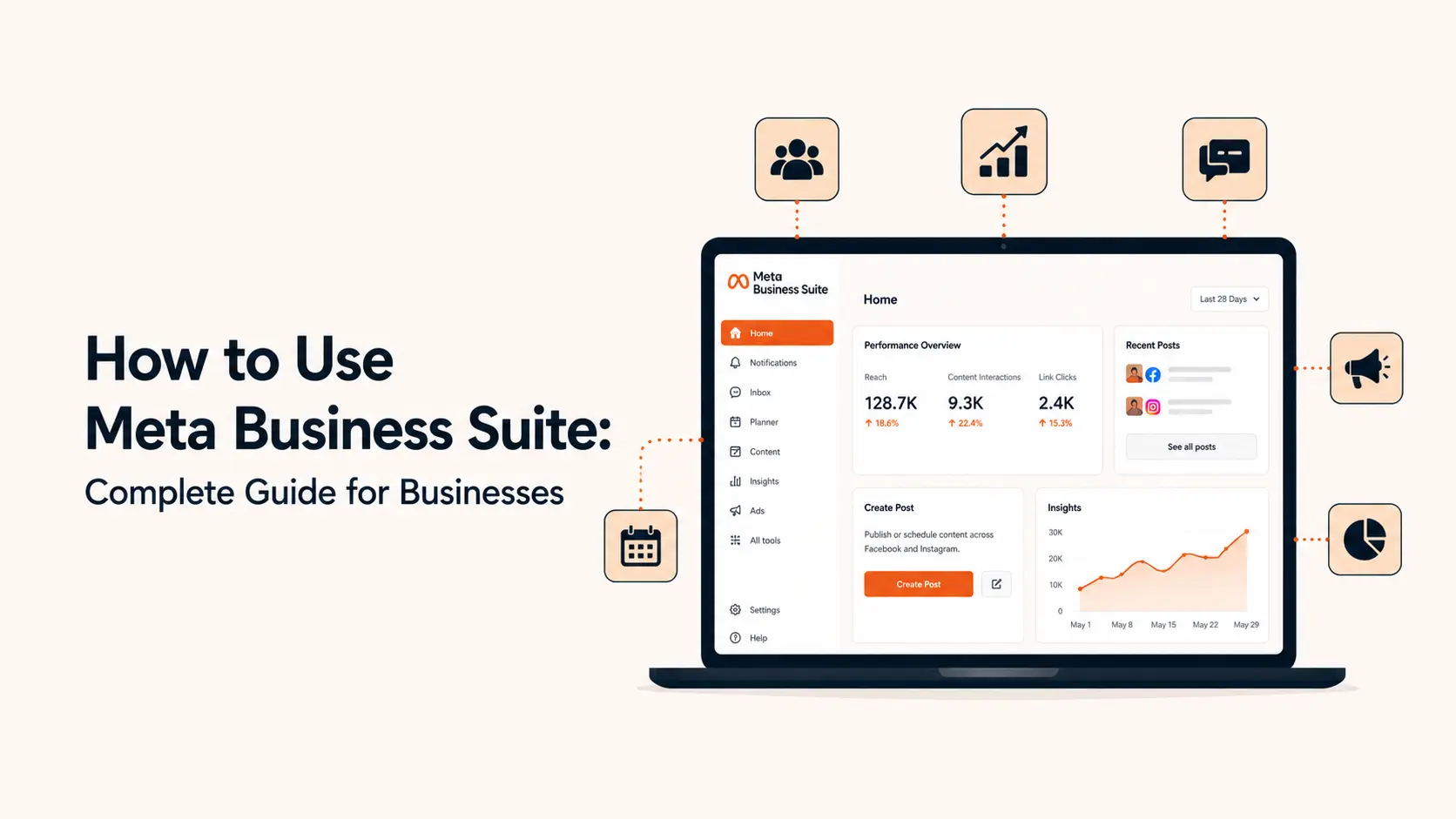


Meta Business Suite is one of the most useful free tools for businesses that manage Facebook and Instagram together. It brings content publishing, scheduling, messages, comments, customer follow-up, notifications, insights, basic ad activity, and account management into one workspace.
The problem is that many businesses only use it as a post scheduler. That leaves a lot of value unused. A better approach is to treat Meta Business Suite as an operating dashboard for daily social media work, then use specialist tools such as Ads Manager when you need deeper advertising controls.
This guide explains the current workflow in 2026, from connecting assets and assigning access to planning content, managing Inbox, automating repetitive replies, reviewing Insights, organizing leads, and building a weekly operating routine. If you are still setting up your Facebook presence, start with Tenfic’s Facebook Business Page guide.
TL;DR
- Connect the correct Facebook Page and Instagram professional account before building workflows.
- Use Content and Planner to create, draft, schedule, reschedule, and review Facebook and Instagram publishing.
- Use Inbox as a shared customer-service workspace for Messenger, Instagram, WhatsApp, and comments where those channels are connected and supported.
- Set up instant replies, away messages, keyword automations, labels, notes, follow-up states, and assignments to reduce repetitive work.
- Use Insights to compare reach, engagement, and content performance, then adjust what you publish.
- Give staff task access when they only need operational tools; reserve full control for people who genuinely need settings and access management.
- Use Ads Manager, Events Manager, Commerce tools, or a CRM when the job requires deeper specialist functionality.
What is Meta Business Suite?
Meta Business Suite is Meta’s business-management workspace for Facebook and Instagram. It is available on desktop and as a mobile app. Depending on the assets connected to your business and the permissions you have, it can centralize content, communications, performance data, notifications, and other business tasks.
It is not the same thing as Meta Ads Manager. Business Suite can surface advertising actions and results, but Ads Manager is the stronger environment for building and optimizing full campaigns. It is also not a replacement for a complete CRM, ecommerce platform, analytics stack, or social media management system when a business has more advanced needs.
What can you do in Meta Business Suite?
The exact navigation can vary by account, region, connected assets, and Meta product updates, but the main business jobs stay fairly consistent.
- Create, publish, draft, and schedule Facebook Page content.
- Plan upcoming content from a calendar-style Planner.
- Manage Facebook and Instagram messages and comments from a unified Inbox when the accounts are connected.
- Connect WhatsApp messaging where the account and region support it.
- Assign conversations, mark items for follow-up, move completed conversations to Done, and use labels or private notes.
- Create message automations such as instant replies, away messages, and keyword-triggered responses.
- Review Page and content Insights, including reach and engagement data.
- Access lead-management options such as Leads Center when available and connect a CRM for stronger follow-up.
- Manage team access and operational permissions.
- Move into Ads Manager and other Meta tools for specialist tasks.
1. Set up your Meta Business Suite workspace
Before building a content or customer-service process, confirm that you are working inside the correct Page, business portfolio, Instagram account, and ad account. Many Business Suite problems are permission or asset-selection problems rather than product bugs.
Connect your Facebook Page
Your Facebook Page is the public business identity behind most Page-level Business Suite workflows. If you still need one, follow How to Create a Facebook Business Page and complete the business name, category, contact details, profile image, cover image, and action button before driving significant traffic.
Connect your Instagram professional account
A connected professional Instagram account allows cross-app workflows such as managing Instagram comments and Direct messages from Business Suite Inbox. Meta’s current help documentation also notes that linking a Facebook Page and Instagram professional account enables cross-app publishing and advertising features.
Meta documents the connection benefits in its Instagram and Facebook Page connection guidance. If Inbox does not show Instagram messages after connecting, you may need to confirm message access and reauthenticate the Instagram account.
Connect WhatsApp when it fits your customer journey
For businesses that sell through conversation, WhatsApp can be an important part of the response workflow. When connected and supported, Business Suite Inbox can bring WhatsApp conversations into the same operating environment as Messenger and Instagram.
Do not connect channels merely to make the dashboard look complete. Connect the channels customers actually use, then design response ownership around them.
2. Understand Facebook access vs task access
Permissions matter because Business Suite often becomes a shared workspace for owners, marketers, support staff, agencies, and contractors. Giving everyone full control creates unnecessary account risk.
Meta currently separates Facebook access and task access for Pages. People with task access can manage assigned Page functions through tools such as Meta Business Suite and Ads Manager, but they cannot switch into the Page and manage it directly on Facebook.
Meta’s current Page access documentation explains that task access can cover content, messages and community activity, ads, and Insights, while full control adds higher-risk settings and access management.
A good rule is simple: give the minimum access needed to do the job. Review access when an employee, contractor, or agency relationship changes.
3. Learn the Meta Business Suite dashboard
Do not try to memorize every menu position. Meta changes navigation regularly. Learn the functional areas instead.
- Home: a summary of recent business activity, tasks, and shortcuts.
- Notifications: activity that may need review across connected assets.
- Inbox: messages, comments, follow-up work, automations, and customer information.
- Content: published posts, drafts, scheduled content, and content management.
- Planner: calendar-based planning and scheduling.
- Insights: Page, audience, and content performance data available to the account.
- All tools: entry points to additional Meta surfaces such as Ads Manager, Events Manager, settings, leads, and other tools available to your business.
If a menu item in a tutorial does not match your account exactly, look for the same function under All tools or the account’s current sidebar. Availability can vary by permissions and asset type.
4. Create and publish Facebook content
Meta Business Suite is useful when more than one person contributes to Page publishing because it supports drafts and scheduled content without requiring everyone to publish immediately.
For a standard Page post, choose Create post, select the intended Facebook and/or Instagram destinations when supported, add the copy and media, review platform-specific settings, then publish, schedule, or save the item for later.
Use drafts for review workflows
Drafts are helpful when a writer prepares copy, a designer supplies media, and another person approves the final post. Meta’s current help guidance notes that multiple Page drafts on desktop are managed through Meta Business Suite.
Create simple naming and approval conventions outside the tool if several people collaborate. Business Suite is useful for production, but it is not a full editorial project-management platform.
Do not force identical posts across Facebook and Instagram
Cross-posting saves time, but the strongest caption, format, CTA, hashtag use, link behavior, and media crop may differ by platform. Start from one content idea, then adapt the execution when the audience context changes.
5. Schedule posts with Planner
Planner turns publishing into a calendar rather than a sequence of last-minute posts. This is useful for launches, campaigns, seasonal content, recurring educational topics, and maintaining a consistent baseline.
Meta currently documents Page scheduling through Business Suite and notes that scheduled Page posts can be set between 20 minutes and 29 days in advance. Planner also supports editing, duplicating, rescheduling, moving content to drafts, and deleting scheduled Page posts. See Meta’s current scheduling guidance.
Use Active times as a clue, not a law
Meta can show recommended or active times in scheduling workflows. Use these as account-specific inputs, then compare them with actual post performance. A strong post published at a less popular hour can outperform weak content at an allegedly perfect time.
For a broader publishing system, use Tenfic’s social media growth strategy and content pillar guide to decide what should fill the calendar.
6. Use Content to manage what has been published
The Content area is where you review existing content rather than thinking only about the next post. Use it to compare published, scheduled, and draft items, identify gaps, and find posts worth repurposing.
A practical review question is: what should we repeat as a topic, not as an exact post? If a customer FAQ performs well, create a Reel, carousel, longer explanation, or follow-up example around the same underlying problem.
Do not let Content become a graveyard of old posts. Use it as a feedback loop into the next Planner cycle.
7. Manage Messenger, Instagram, WhatsApp, and comments from Inbox
Inbox is one of the most valuable Business Suite features for businesses that receive customer questions through social platforms.
Meta’s current Business Suite Inbox documentation says Inbox can combine Messenger, Instagram, and WhatsApp messages, with platform filters, and can also surface Facebook and Instagram comments. Connected-account and regional availability still apply.
- Reply to messages from supported connected channels.
- Review and respond to Facebook and Instagram comments.
- Filter by platform, unread status, follow-up state, assignee, or ad response where available.
- Mark conversations unread or for follow-up.
- Move completed conversations to Done or unwanted conversations to Spam.
- Search for people, labels, or message content.
- Add customer labels, contact details, and private notes when available.
- Assign conversations to the person responsible for follow-up.
Build an Inbox ownership rule
A unified Inbox only helps if the team knows who owns each conversation. Define response expectations by message type.
This turns Inbox from a pile of notifications into a lightweight operating queue.
8. Use labels, notes, and follow-up states
Labels and private notes are useful for simple organization. For example, a local service business might label conversations as New Lead, Quote Sent, Existing Customer, Urgent, or Partnership.
Keep the label set small. Twenty overlapping labels create more admin work than value. Choose labels that change what someone should do next.
Private notes can preserve context for another team member without sending that information to the customer. Use them for relevant operational context, not sensitive personal data that does not belong in a social-media tool.
For businesses with a long sales cycle, use a proper CRM once the conversation becomes a qualified opportunity. Business Suite can help capture and triage demand, but it should not be forced to replace a full pipeline system.
9. Set up Inbox automations
Automation is most useful for repetitive, predictable communication. It should reduce response delay without pretending that every customer question can be solved automatically.
Instant reply
Meta currently supports instant replies as an automatic first response to new Page messages. A useful instant reply confirms receipt and sets an expectation, such as when a human will respond. Meta documents this in its instant reply guidance.
Away message
Use an away message when the team is offline. Include business hours or the expected response window and direct urgent enquiries to the correct alternative channel if one exists.
Keyword automations
Keyword automations can respond when a message contains specific words or phrases. These are useful for common requests such as pricing, opening hours, location, delivery, booking, or a named product.
- Use specific keywords that reflect real customer language.
- Write short replies that answer the immediate question and offer a human next step.
- Review false triggers and missed phrases regularly.
- Do not automate sensitive complaints, refunds, legal issues, or nuanced sales objections without human review.
If repetitive social workflows are consuming significant staff time, Tenfic’s social media automation services can help connect publishing, routing, notifications, and follow-up while keeping judgment-heavy conversations human-reviewed.
10. Use Meta Business Suite for leads
Businesses running lead ads can use Meta’s lead tools to improve follow-up. Meta recommends connecting a CRM for fast lead access and also points businesses without a CRM toward Leads Center where available.
Meta’s current lead-ad guidance specifically recommends automating lead download through a CRM and notes Leads Center as an option for businesses that do not have one. This is especially relevant when leads come from instant forms or messaging campaigns.
The important part is speed and ownership. A lead that sits in a dashboard for two days is not useful simply because the ad generated it cheaply.
- Assign every new lead to a person or process.
- Record whether the lead is qualified, contacted, booked, won, lost, or still nurturing.
- Measure qualified lead cost, not form submissions alone.
- Export or connect leads to a CRM when volume is too large for manual handling.
- Feed high-quality outcome data back into your advertising stack where your setup supports it.
For the campaign side, follow Tenfic’s beginner guide to Facebook Ads.
11. Review performance in Insights
Business Suite Insights helps you understand what happened after publishing. Meta’s current Page guidance says detailed post Insights in Business Suite can include metrics such as reach and engagement, with content performance available under the Insights area.
Do not judge every post by the same metric. The correct metric depends on the job the content was supposed to do.
Compare patterns, not isolated winners
Look for recurring topics, formats, hooks, offers, and posting patterns that perform well across several posts. One unusually strong post can be a useful clue, but a repeatable pattern is more valuable.
Also compare social metrics with website analytics, CRM data, ecommerce sales, calls, bookings, and customer-support outcomes. Business Suite shows part of the customer journey, not the whole business.
12. Understand the limits of Business Suite ads
Business Suite may surface promotions, boosted posts, ad summaries, and shortcuts into advertising. That is convenient for basic work, but use Ads Manager when you need campaign structure, objective selection, audience strategy, placements, budget controls, conversion tracking, experiments, retargeting, or deeper optimization.
A business should not choose the simpler interface simply because Ads Manager looks complicated. The tool should match the advertising decision.
Use How to Run Facebook Ads: A Beginner’s Guide for the full campaign workflow.
13. Use Meta Business Suite on mobile without turning work into constant notifications
The mobile app is valuable for real-time customer responses, approvals, urgent comments, simple scheduling changes, and checking performance away from a computer.
It is less suitable for complex campaign analysis, bulk planning, long-form reporting, or careful permission audits. Use desktop for work that benefits from more context.
Set internal response expectations so staff do not feel compelled to answer every social notification instantly. The business needs a service standard, not permanent interruption.
14. Build a weekly Meta Business Suite workflow
The easiest way to get value from Business Suite is to give each section a recurring job.
This routine keeps Business Suite from becoming another dashboard people open only when something breaks.
15. A practical team workflow for small businesses
A small team can use Business Suite without overcomplicating roles.
- Owner or marketing lead: strategy, high-risk permissions, approvals, monthly performance review.
- Content manager: drafts, scheduling, Planner, content reporting.
- Community or support manager: Inbox, comments, labels, follow-ups, moderation.
- Sales: qualified leads and high-intent conversations.
- Agency or contractor: task-based access limited to the functions covered by the engagement.
Document the handoff points. For example, the community manager may answer general product questions but assign pricing requests above a certain value to sales. This prevents customers from receiving contradictory replies.
16. Common Meta Business Suite mistakes
- Giving everyone full control. Use task access or narrower permissions whenever possible.
- Connecting the wrong Instagram account or Page. Verify assets before publishing or responding.
- Cross-posting everything identically. Adapt content where platform context changes.
- Scheduling a month and never checking it again. News, stock, launches, pricing, and priorities change.
- Using automation as customer support. Automate acknowledgement and simple information, not judgment.
- Leaving leads in the dashboard. Assign ownership and follow up quickly.
- Tracking reach without business outcomes. Tie reporting to leads, sales, bookings, retention, or service quality.
- Using Business Suite as a full CRM. Move qualified opportunities into a proper sales system when needed.
- Boosting posts without a campaign strategy. Use Ads Manager when the outcome requires structured paid acquisition.
- Ignoring mobile experience. Test links, forms, landing pages, and creative on the devices customers actually use.
17. Troubleshoot common Meta Business Suite problems
When troubleshooting, start with the selected business asset and the user’s permission level. Those two checks solve a large share of Business Suite access problems.
18. When should you use another tool?
Meta Business Suite is strong for everyday Meta operations, but businesses should switch tools when the job exceeds its scope.
- Use Ads Manager for serious paid campaign management.
- Use Events Manager for Pixel, Conversions API, datasets, and event diagnostics.
- Use a CRM for multi-stage sales pipelines, forecasting, and structured lifecycle follow-up.
- Use a help desk when support needs SLAs, ticketing, escalation, and multi-channel history.
- Use a dedicated social media management platform when you manage many non-Meta networks or require advanced approvals and reporting.
- Use analytics and ecommerce platforms to validate revenue and conversion performance beyond Meta-reported metrics.
Good operations come from connecting tools around clear responsibilities, not trying to make one dashboard do everything.
19. Meta Business Suite checklist for businesses
- Facebook Page is complete and connected to the correct business.
- Instagram professional account is connected and message access is confirmed.
- WhatsApp is connected only if the business actively supports that channel.
- Each team member has the minimum required access.
- Draft, approval, and scheduling process is defined.
- Planner is reviewed before campaigns and important dates.
- Inbox labels, follow-up states, assignments, and response ownership are defined.
- Instant reply and away message set realistic expectations.
- Keyword automations cover only repetitive, low-risk questions.
- Lead follow-up has an owner and CRM handoff when needed.
- Insights are reviewed against business goals.
- Ads Manager is used for advanced paid campaigns.
- Access is audited when staff or agency relationships change.
Conclusion
Meta Business Suite works best when you treat it as an operating system for everyday Facebook and Instagram management. Use Planner and Content to keep publishing organized, Inbox to turn comments and messages into a manageable workflow, automations to remove repetitive responses, Insights to improve decisions, and access controls to keep the business secure.
The biggest improvement comes from connecting those functions. Content creates conversations, Inbox captures intent, leads move into sales follow-up, Insights show what worked, and the next content cycle gets better. For the wider strategy around that workflow, continue with Tenfic’s Facebook Marketing for Small Businesses guide.
Frequently asked questions
Is Meta Business Suite free?
Meta Business Suite itself is generally available as a free Meta business-management tool. Advertising spend, third-party software, commerce costs, or other paid services are separate.
Can I manage Facebook and Instagram together in Meta Business Suite?
Yes. When a Facebook Page and Instagram professional account are correctly connected, Business Suite can support cross-app functions such as publishing, messages, comments, and performance review. Exact features can vary by account and region.
Can Meta Business Suite manage WhatsApp messages?
Business Suite Inbox can include WhatsApp alongside Messenger and Instagram when the WhatsApp account is connected and the feature is supported for the business. Availability and setup can vary.
How far ahead can I schedule Facebook Page posts in Meta Business Suite?
Meta’s current Page scheduling guidance says scheduled Page posts can be set from 20 minutes up to 29 days in advance. Meta can change scheduling limits, so check the current Planner interface for your account.
What is the difference between Meta Business Suite and Ads Manager?
Business Suite is designed for broad day-to-day business management, including content, Inbox, comments, and Insights. Ads Manager provides deeper controls for building, targeting, budgeting, tracking, testing, and optimizing paid campaigns.
Can employees use Meta Business Suite without full control of my Facebook Page?
Yes. Meta supports task access for people who need to manage assigned Page functions through business tools such as Meta Business Suite or Ads Manager without giving them full Page control.
Can Meta Business Suite replace a CRM?
It can help organize conversations, customer details, labels, notes, and some lead workflows, but businesses with structured pipelines, forecasting, automation, or long sales cycles usually need a dedicated CRM.
What should I check every day in Meta Business Suite?
For most businesses, the daily priorities are Inbox, comments, follow-up items, urgent notifications, and any scheduled content due soon. Publishing strategy and Insights can usually be reviewed on a weekly or monthly cadence.