

A business website does not need to be a bank or a major ecommerce store to become a target. Automated bots continuously scan the web for weak passwords, outdated software, exposed admin panels, vulnerable plugins, misconfigured servers, and forms they can abuse.
Website security is therefore less about one security plugin and more about reducing attack surface, limiting what an attacker can do, detecting problems quickly, and being able to recover cleanly.
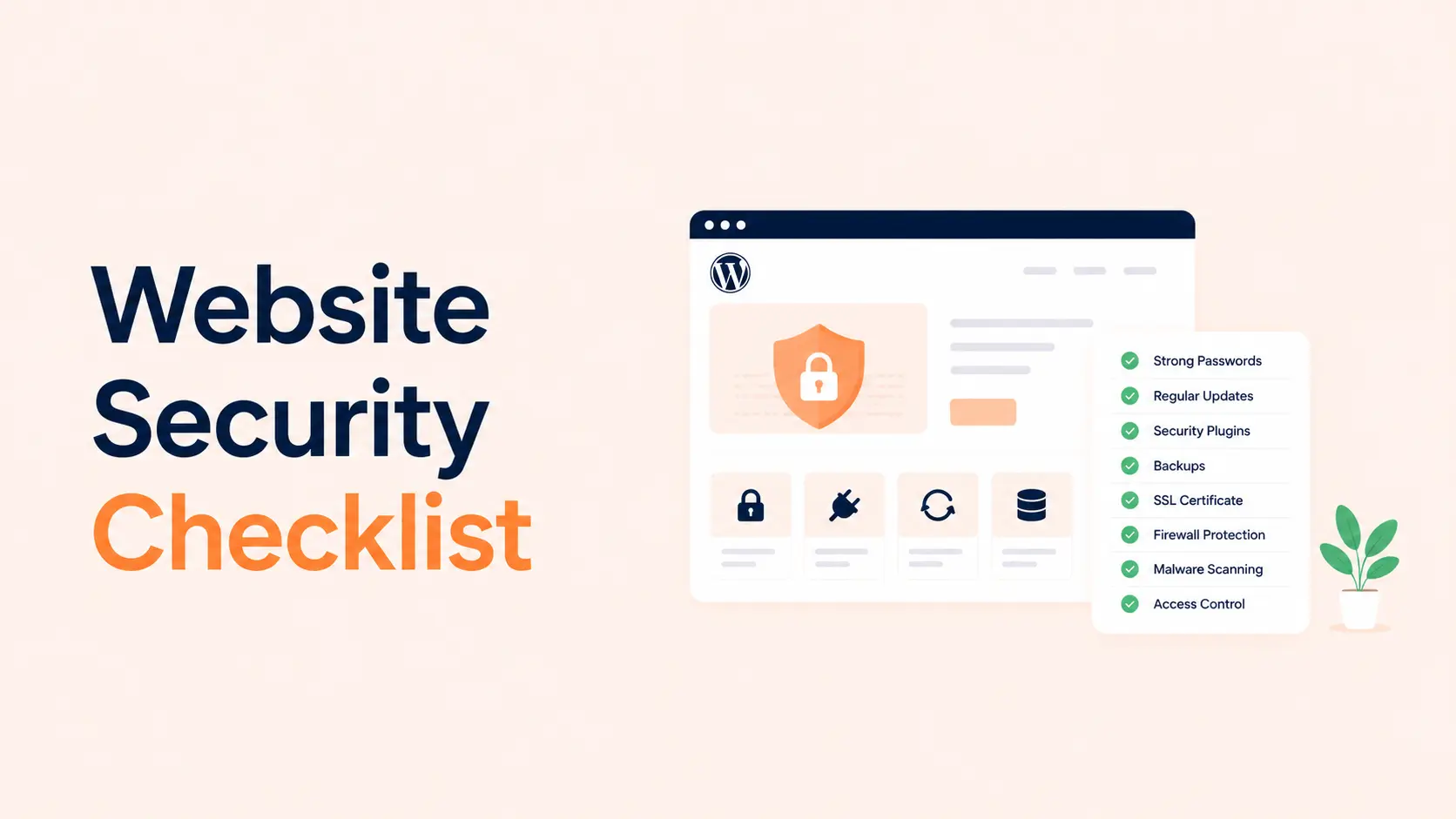
This checklist covers the controls that matter most for a typical business website, including WordPress sites, ecommerce stores, lead-generation websites, and content-heavy sites.
TL;DR
- Keep the CMS, plugins, themes, server software, and integrations patched.
- Require strong unique passwords and multi-factor authentication for privileged accounts.
- Give users only the access they need and remove old accounts quickly.
- Maintain tested off-site backups that cannot be destroyed with the live website.
- Use HTTPS everywhere, secure hosting, appropriate file permissions, and a web application firewall where useful.
- Reduce unnecessary plugins, themes, services, exposed endpoints, and admin access.
- Add monitoring for malware, file changes, failed logins, uptime, and unusual traffic.
- Protect forms, login pages, and public endpoints from automated abuse.
- Configure security headers carefully instead of copying an aggressive policy that breaks the site.
- Have a documented incident-response and recovery process before you need it.
Website Security Checklist: 15 Essential Controls
| Security control | Main risk it reduces | Priority |
|---|---|---|
| Updates and patching | Known vulnerabilities | Critical |
| Strong passwords + MFA | Account takeover | Critical |
| Least privilege | Excessive access and damage | Critical |
| Tested backups | Data loss and ransomware recovery | Critical |
| Secure hosting/server | Infrastructure compromise | Critical |
| HTTPS | Data interception | High |
| WAF and traffic controls | Automated attacks and malicious requests | High |
| Reduce attack surface | Vulnerable or unnecessary software | High |
| File/config protection | Unauthorized code modification | High |
| Database protection | Data theft and destructive access | High |
| Login/admin protection | Brute force and credential abuse | High |
| Form/API abuse controls | Spam, scraping, and automated abuse | Medium-High |
| Security headers | Browser-side attack exposure | Medium-High |
| Monitoring and logging | Delayed breach detection | High |
| Incident-response plan | Slow or unsafe recovery | Critical |
1. Keep the Website and Server Stack Updated
Known vulnerabilities become much easier to exploit after public disclosure, so delayed patching creates unnecessary exposure.
For WordPress, keep WordPress core, plugins, themes, and PHP on supported versions. Remove software that is abandoned rather than leaving it installed indefinitely. The official WordPress hardening guide explicitly recommends staying current because older versions can remain exposed to publicly known vulnerabilities.
Updates should cover more than the CMS. Review:
- server operating system and control panel;
- PHP or application runtime;
- database software;
- web server software;
- plugins, themes, libraries, and custom dependencies;
- ecommerce, payment, CRM, analytics, and API integrations.
For important business sites, test major updates on staging before production. Security updates should be deployed promptly, but “update quickly” does not mean “update blindly without a backup.”
2. Require Strong Unique Passwords and MFA
A strong website can still be compromised through a stolen administrator password.
Every privileged user should have a unique password that is not reused on email, hosting, domain registrar, analytics, or other services. Use a password manager rather than relying on memorable variations of the same password.
Enable multi-factor authentication for:
- WordPress/CMS administrators;
- hosting and server accounts;
- domain registrar and DNS accounts;
- CDN/WAF accounts;
- business email accounts that can reset website passwords;
- source-code repositories and deployment systems.
MFA is not a replacement for secure sessions, patching, or device security, but it significantly raises the difficulty of credential-based account takeover.
3. Apply Least Privilege to Every User
Do not give administrator access because it is convenient.
A content writer usually needs publishing permissions, not plugin installation. A customer-support user may need order access without being able to edit themes or create administrators. Developers may need temporary elevated access during a project rather than permanent access forever.
Review users regularly and:
- remove accounts belonging to former staff, agencies, and contractors;
- downgrade permissions when responsibilities change;
- avoid shared administrator accounts;
- create separate named accounts so actions can be audited;
- restrict hosting, database, and deployment permissions to people who actually need them.
Least privilege also limits damage if one account is compromised. OWASP recommends restricting accounts and processes to the minimum privileges required.
4. Maintain Tested Off-Site Backups
A backup is only useful if it is recent, complete, accessible, and restorable.
Back up both the website files and the database. For stores or frequently updated sites, the database may need a much shorter backup interval than a brochure website.
At least one backup copy should be stored outside the same hosting account. If an attacker can delete the website and every backup from one dashboard, the backup strategy has a single point of failure.
The official WordPress backup guidance recommends backing up both the database and website files. Periodically test a restore on staging so you know the backups actually work.
Record your expected recovery point and recovery time. “We have backups” is not the same as knowing how much data you can lose and how quickly the business can return online.
5. Use Secure, Maintained Hosting
Hosting security affects everything above the application layer.
Your provider should maintain supported server software, isolate customer environments appropriately, offer secure access methods, provide backup/recovery options, and make resource/security events visible enough to investigate incidents.
For self-managed servers, harden the operating system, firewall unnecessary ports, remove unused services, patch promptly, restrict SSH access, and avoid running applications with excessive privileges.
If your site also suffers from slow backend performance, Tenfic’s guide on reducing TTFB and improving server response time explains how hosting, PHP, databases, caching, and backend work interact.
6. Enforce HTTPS Everywhere
HTTPS protects data in transit between the visitor and your website.
Install a valid TLS certificate, redirect HTTP traffic to HTTPS, update internal URLs, and prevent mixed content. Sensitive cookies should be configured securely, and login, checkout, form, and account pages should never fall back to unencrypted HTTP.
HTTPS does not make a vulnerable application safe. It prevents interception and tampering in transit; it does not patch plugins, stop malware, or secure weak passwords.
7. Use a WAF and Traffic Controls Where Appropriate
A web application firewall can block or challenge malicious requests before they reach the application. It is especially useful for filtering automated probes, known exploit patterns, abusive bots, and volumetric request attacks.
A CDN or security edge can also provide rate limiting, bot controls, DDoS protection, and geographic or IP-based rules depending on the service.
Do not treat a WAF as permission to leave vulnerable software online. It is an additional layer, not a substitute for patching.
If you are deciding how edge delivery and caching fit together, see CDN vs caching.
8. Reduce the Website’s Attack Surface
Every installed component is code you must trust and maintain.
Remove:
- unused plugins and themes;
- abandoned integrations;
- test scripts and old staging files;
- unused administrator accounts;
- old API keys and webhook secrets;
- demo content or diagnostic tools that expose sensitive information;
- unnecessary public services or server ports.
On WordPress, plugin count alone is not a security score, but every plugin introduces another dependency and update lifecycle. Tenfic’s guide on how many WordPress plugins are too many explains why quality, maintenance, overlap, and execution matter more than an arbitrary number.
Install themes and plugins only from sources you trust.
9. Protect Files, Configuration, and Secrets
Website files should not be writable by everyone.
Use the most restrictive file ownership and permissions compatible with your hosting environment. Sensitive configuration files should not be publicly downloadable. Do not store API keys, database credentials, private keys, or production secrets in public repositories or client-side JavaScript.
For WordPress specifically:
- protect
wp-config.php; - disable dashboard file editing when it is not required;
- avoid insecure plain FTP and use SFTP/SSH where available;
- ensure plugin/theme directories are not unnecessarily writable;
- keep secret keys and credentials out of shared documents and chat logs.
The WordPress hardening handbook provides detailed guidance on file permissions and configuration protection.
10. Secure the Database and Its Credentials
The website should connect to the database using credentials intended for that application, not a server-wide root account.
Restrict remote database access unless it is genuinely required. Use strong credentials, limit network exposure, keep database software patched, and monitor unusual queries or resource spikes.
If multiple unrelated websites share one server, separate databases and users can improve containment. A compromise of one application should not automatically provide access to every other site’s data.
Do not expose database management interfaces publicly without strong authentication and network restrictions.
11. Protect Login and Administrative Access
Login pages attract automated password attacks.
Use MFA, strong passwords, and rate limiting or challenge mechanisms where appropriate. For high-value administrative systems, consider IP restrictions, VPN access, SSO, or additional access controls when they fit the team’s workflow.
Avoid security theatre. Renaming a login URL can reduce bot noise, but it should not be treated as the primary authentication defense.
Also secure the recovery path. If an attacker controls the administrator’s email account, they may be able to reset the website password even when the website login itself is protected.
12. Protect Forms, APIs, and Public Endpoints From Abuse
Contact forms, search boxes, login endpoints, XML-RPC/API endpoints, checkout workflows, and public webhooks can all be abused by automated traffic.
Use controls appropriate to the endpoint:
- server-side validation and sanitization;
- rate limiting;
- anti-spam or bot challenges;
- CSRF protection for state-changing actions;
- authentication and authorization for private APIs;
- signed or secret-verified webhooks;
- request-size and upload restrictions;
- file-type validation for uploads.
Do not rely only on browser-side validation. An attacker can send requests directly to the server without using your form interface.
13. Configure Security Headers Carefully
HTTP response headers can reduce browser-side exposure to attacks such as clickjacking, unsafe content execution, and information leakage.
Useful headers may include:
- Content-Security-Policy (CSP);
frame-ancestorsin CSP or appropriate frame protection;X-Content-Type-Options: nosniff;Referrer-Policy;Permissions-Policywhere appropriate;- HSTS after HTTPS is correctly deployed everywhere.
OWASP’s HTTP Security Response Headers Cheat Sheet notes that security headers can help mitigate XSS, clickjacking, information disclosure, and related browser-side risks.
Do not paste an aggressive CSP from another website and assume it is safe. Start with reporting, identify required scripts/resources, then enforce a policy that matches your actual site. OWASP recommends delivering CSP through the HTTP response header and supports using report-only mode while developing the policy.
14. Monitor the Website, Files, Logs, and Uptime
Prevention is not enough. You need to know when something changes unexpectedly.
Monitor for:
- unexpected administrator accounts;
- modified executable files;
- malware or injected scripts;
- repeated failed logins;
- unusual traffic spikes;
- unexpected redirects or SEO spam pages;
- uptime failures;
- certificate/DNS changes;
- plugin/theme changes outside scheduled maintenance;
- suspicious server or application log events.
File-integrity monitoring is particularly useful for detecting unauthorized changes after a compromise. WordPress’s hardening guidance also recommends logging and monitoring as part of a defense strategy.
Alerts need an owner. A security notification nobody reviews is not a control.
15. Create an Incident-Response and Recovery Plan
Assume that one day you may need to respond to a compromise.
Write down who will:
- take the site offline or isolate affected systems if necessary;
- preserve logs and evidence;
- reset credentials and revoke exposed sessions/API keys;
- identify the vulnerability or entry point;
- rebuild or restore from a known-clean state;
- patch the root cause before returning the site to production;
- check related systems such as email, DNS, hosting, and payment accounts;
- notify customers, partners, regulators, or insurers when required.
Do not simply restore yesterday’s backup if the original vulnerability remains open. The site can be compromised again immediately.
A tested backup plus a documented response process is what turns a security incident from chaos into a recoverable operational problem.
A Simple Monthly Website Security Routine
For many small business websites, a monthly review can catch routine problems before they accumulate:
- confirm core software, plugins, themes, and server components are current;
- review administrator users and access changes;
- verify recent backups and periodically test restoration;
- inspect security, malware, uptime, and login alerts;
- remove unused software and credentials;
- review WAF/rate-limit events for unusual patterns;
- verify HTTPS, certificate status, DNS, and important security headers;
- test critical forms, login, checkout, and account workflows after security changes.
High-traffic ecommerce or application sites may need continuous monitoring and more frequent patching rather than a monthly cycle.
Conclusion
Website security is strongest when multiple controls work together. Updates close known vulnerabilities. MFA and least privilege protect privileged access. Backups provide recovery. Secure hosting, HTTPS, a WAF, permissions, and endpoint controls reduce exposure. Monitoring shortens the time between compromise and detection.
The goal is not to make a website “unhackable.” That is not a realistic security standard. The goal is to make common attacks harder, limit the impact of a successful attack, detect abnormal behavior quickly, and recover without losing control of the business.
For WordPress sites, start with the 15 controls above and then adjust them to the site’s actual risk: ecommerce, customer accounts, sensitive form data, custom integrations, and administrative workflows require more protection than a simple public brochure site.
Frequently Asked Questions
What are the most important website security measures?
Keep software patched, use strong unique passwords and MFA, apply least privilege, maintain tested off-site backups, secure hosting and HTTPS, reduce unnecessary software, protect public endpoints, and monitor the site for suspicious changes.
Does HTTPS make a website secure?
No. HTTPS protects data in transit between the visitor and the website. It does not patch vulnerable software, stop account takeover, remove malware, secure the database, or replace backups and monitoring.
Does a WordPress security plugin protect everything?
No. A security plugin can add useful controls such as login protection, scanning, firewall rules, or alerts, but it cannot compensate for abandoned plugins, weak hosting, reused passwords, missing backups, excessive permissions, or unsafe operational practices.
How often should a business website be backed up?
The schedule should match how quickly the site’s data changes and how much data the business can afford to lose. A brochure site may tolerate daily backups, while a busy ecommerce or membership site may need much more frequent database backups. Test restoration periodically.
Should I hide the WordPress login URL?
Changing the login URL can reduce automated noise, but it should not be treated as a primary security control. Strong passwords, MFA, rate limiting, least privilege, patching, and monitoring provide more meaningful protection.
Do I need a web application firewall?
Not every small website requires the same WAF setup, but a WAF can be valuable for business sites exposed to automated probes, exploit attempts, abusive bots, and high request volumes. It should complement, not replace, patching and secure configuration.
What should I do first if my website is hacked?
Preserve evidence, restrict or isolate the compromised system, revoke exposed credentials and sessions, identify the entry point, restore or rebuild from a known-clean state, patch the vulnerability, and verify related systems before returning the website to normal operation.
